Files Editor — PDF and picture tools
Open the Files Editor →The document workbench: organise, merge, split, crop and compress PDFs, sign and annotate pages by hand, redact what has to disappear, number and watermark, lock and unlock, and convert between PDF, pictures and text. It runs on your asset library — add a file once and it is available to every other part of Grafy — and none of it costs a credit, because none of it calls a model.
Walkthrough: a document in, a finished document out
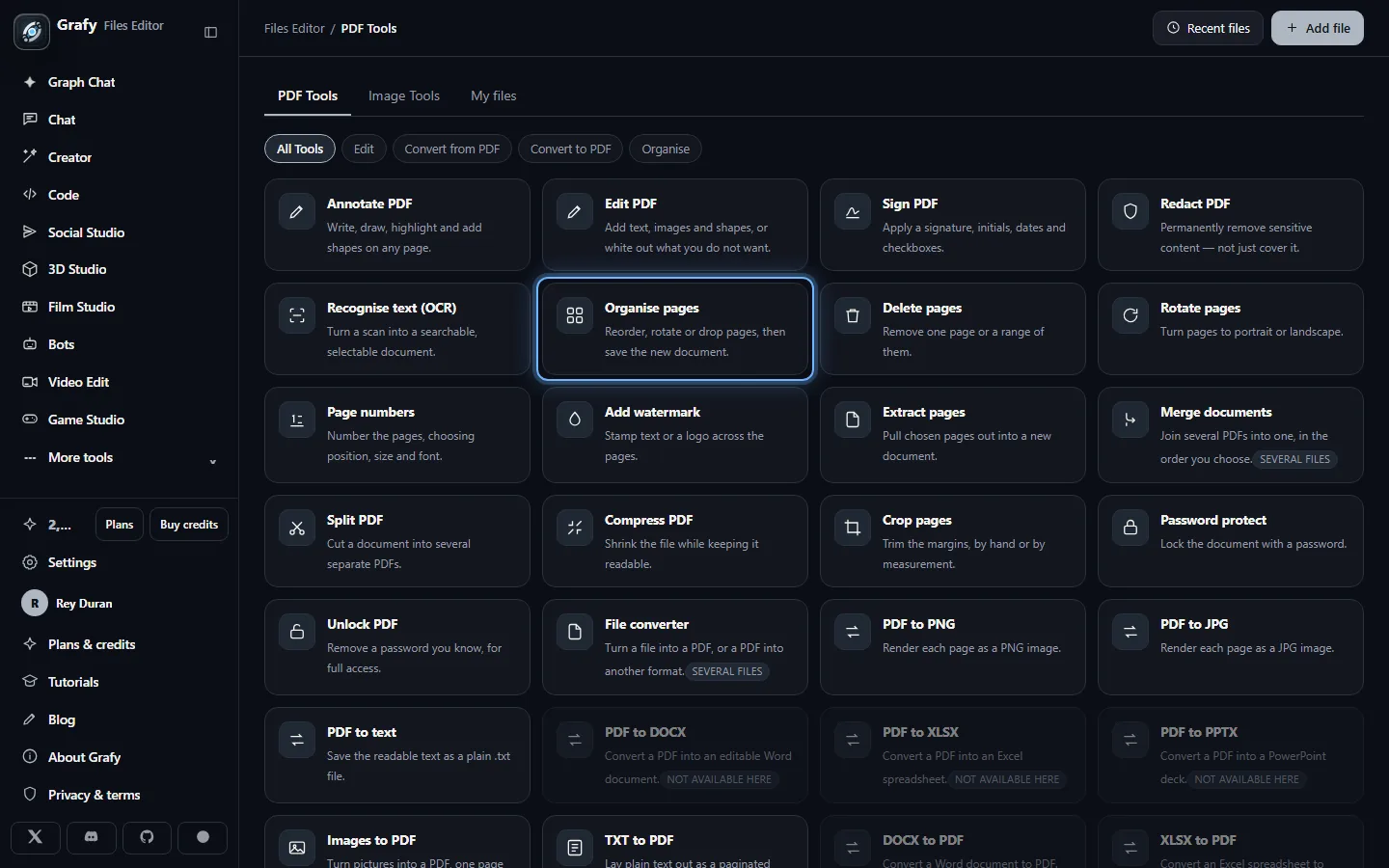
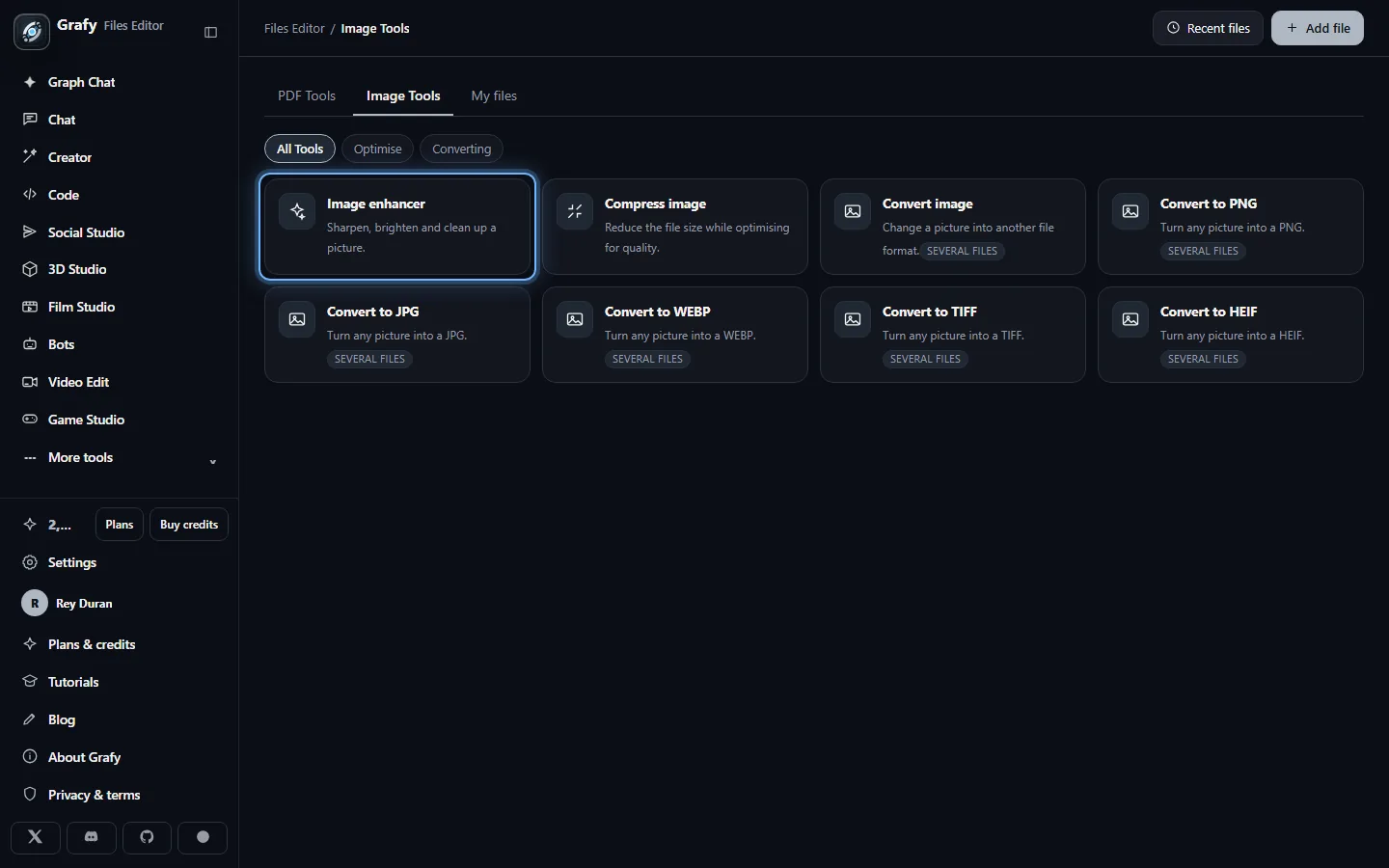
Every tool on one screen
The grid is the whole surface: editing, organising, security and conversion for PDFs under PDF Tools, and a picture side under Image Tools. The tab row narrows it — Edit, Convert from PDF, Convert to PDF, Organise — and each tile says plainly what it does. Pick one and it opens with a place for your file, its own settings, and nothing else in the way.
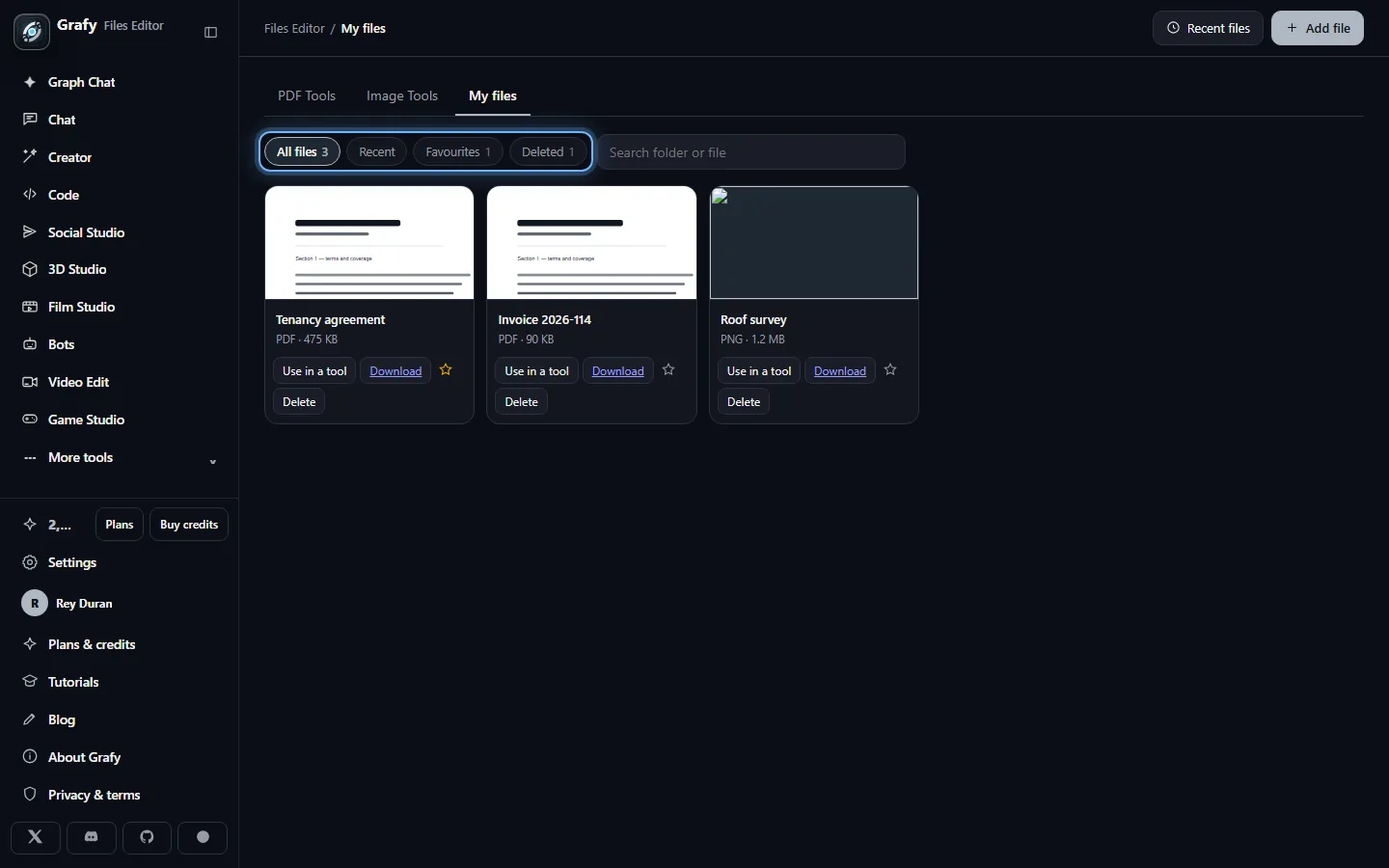
Your files, not a scratch folder
My files is your asset library seen through a document lens: everything you have added or made here, with Recent, Favourites and a Deleted bin you can restore from. A file added here is immediately usable in Graph Chat, Creator and the asset picker — nothing is trapped in this app.
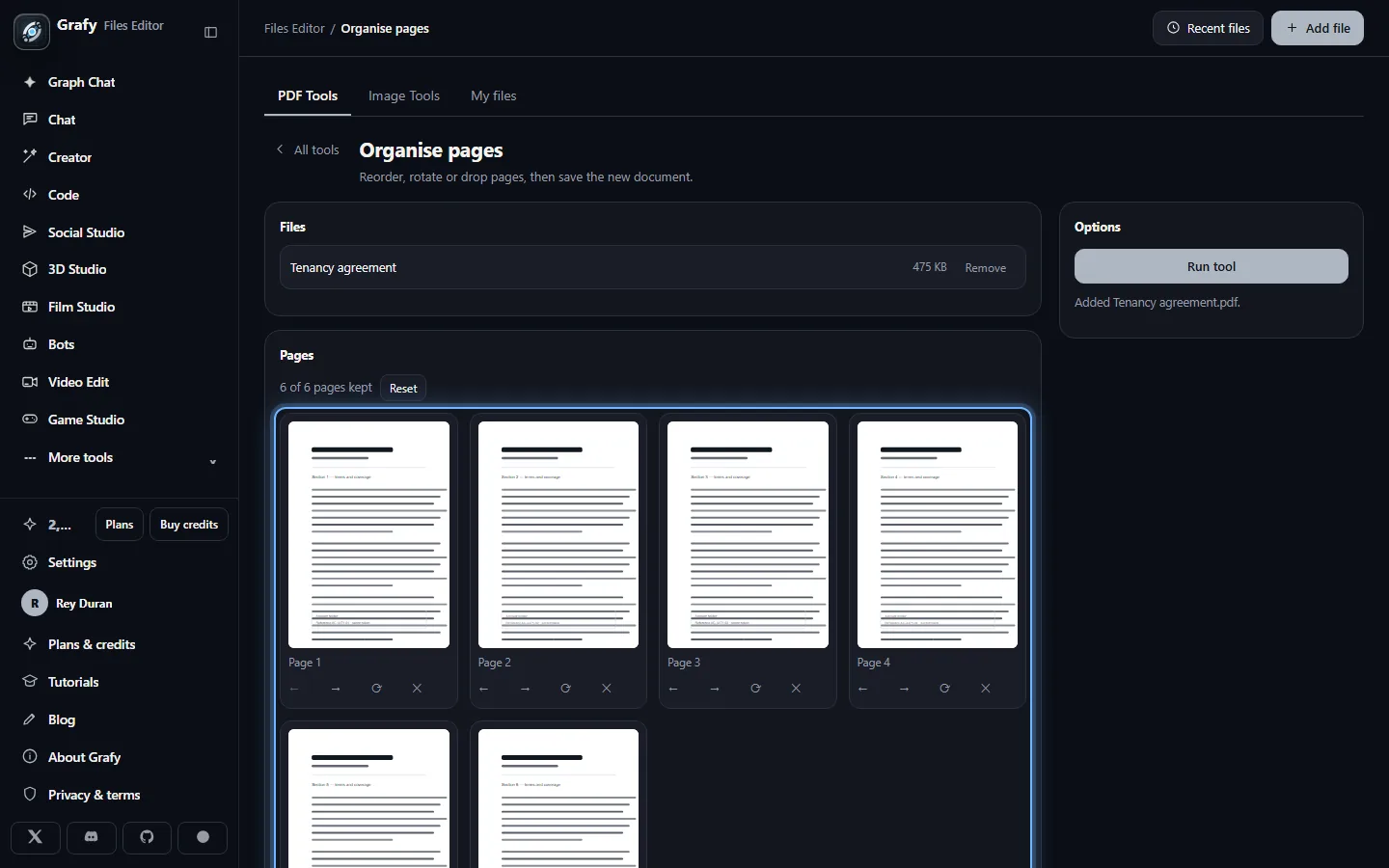
Rearrange the pages by hand
Organise pages lays the document out as thumbnails: drag one to a new position, turn it with ⟳, drop it with ✕. The arrows do the same reordering from the keyboard. What you see is the plan — Run tool saves exactly that as a new document, leaving the original alone.
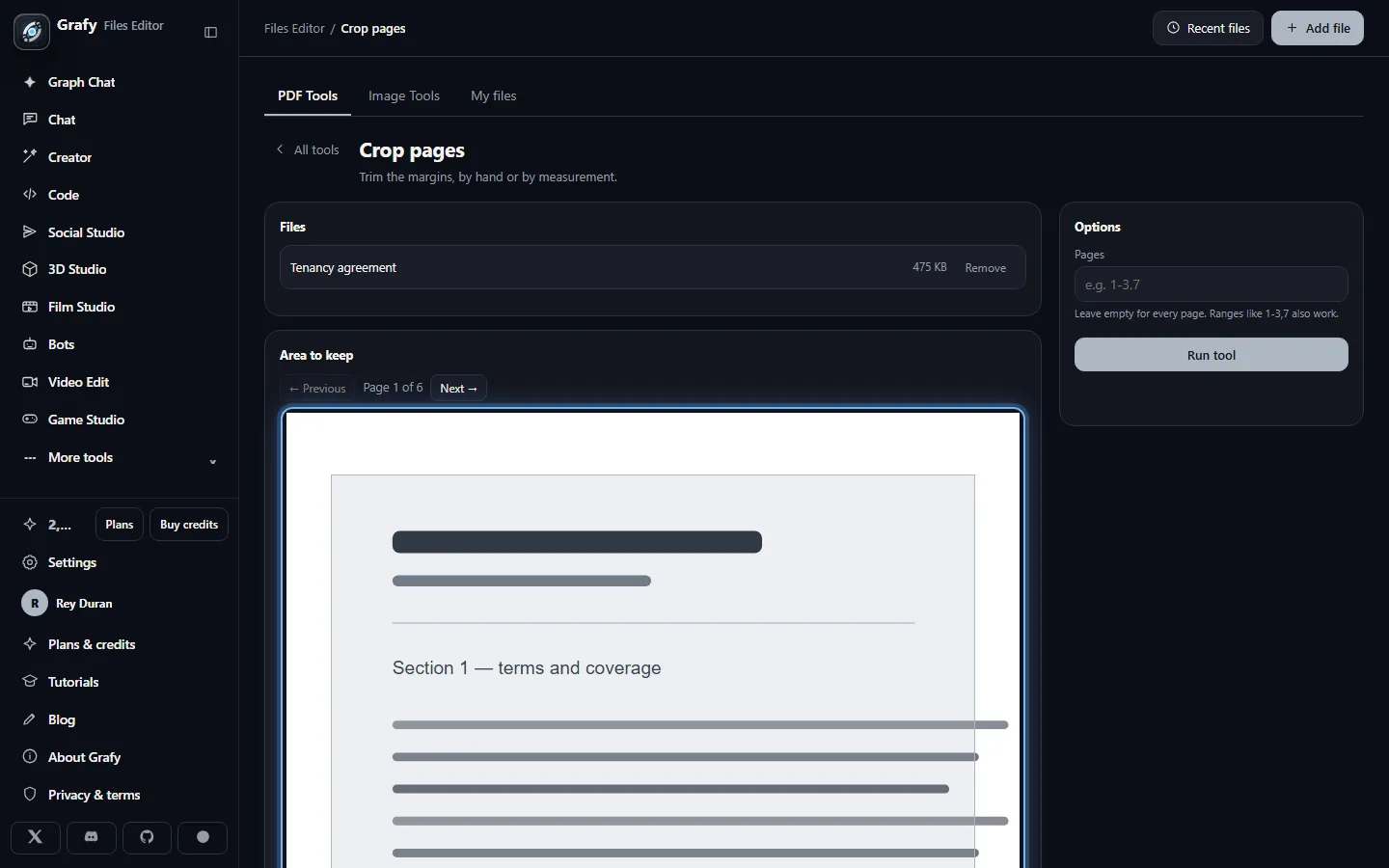
Crop by dragging, not by measuring
Drag the box over the part of the page worth keeping, or its corner to resize; arrow keys nudge it and Shift plus an arrow resizes. The box is stored as a fraction of the page, so it means the same thing whatever size your screen is — and it applies to every page you name in Pages, or to all of them.
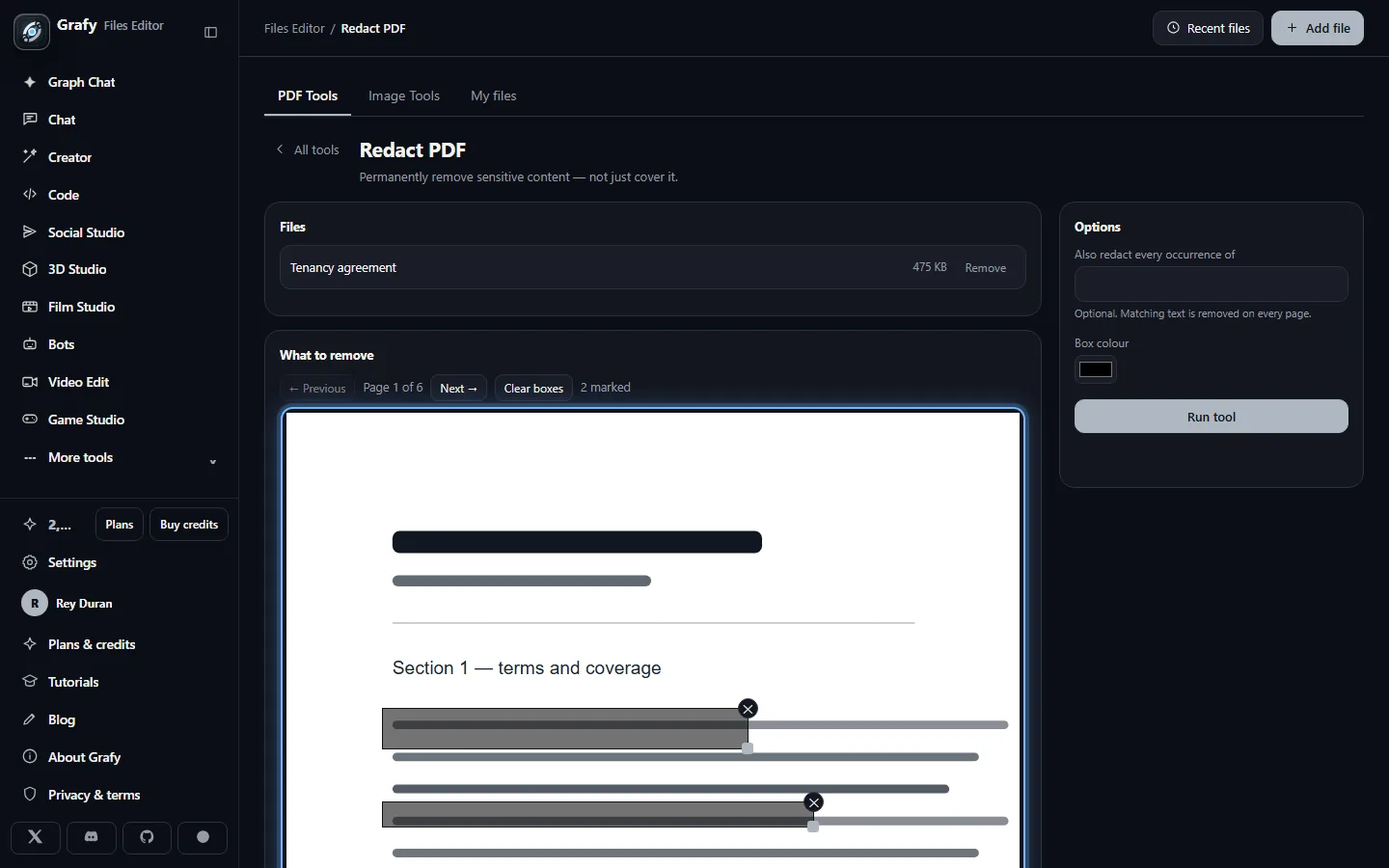
Redaction that actually removes
Drag across anything that must not leave the building. Optionally give a phrase and every occurrence goes too, on every page. This is a genuine redaction: the text and image data underneath are deleted from the file, not covered with a black rectangle that still copies and pastes.
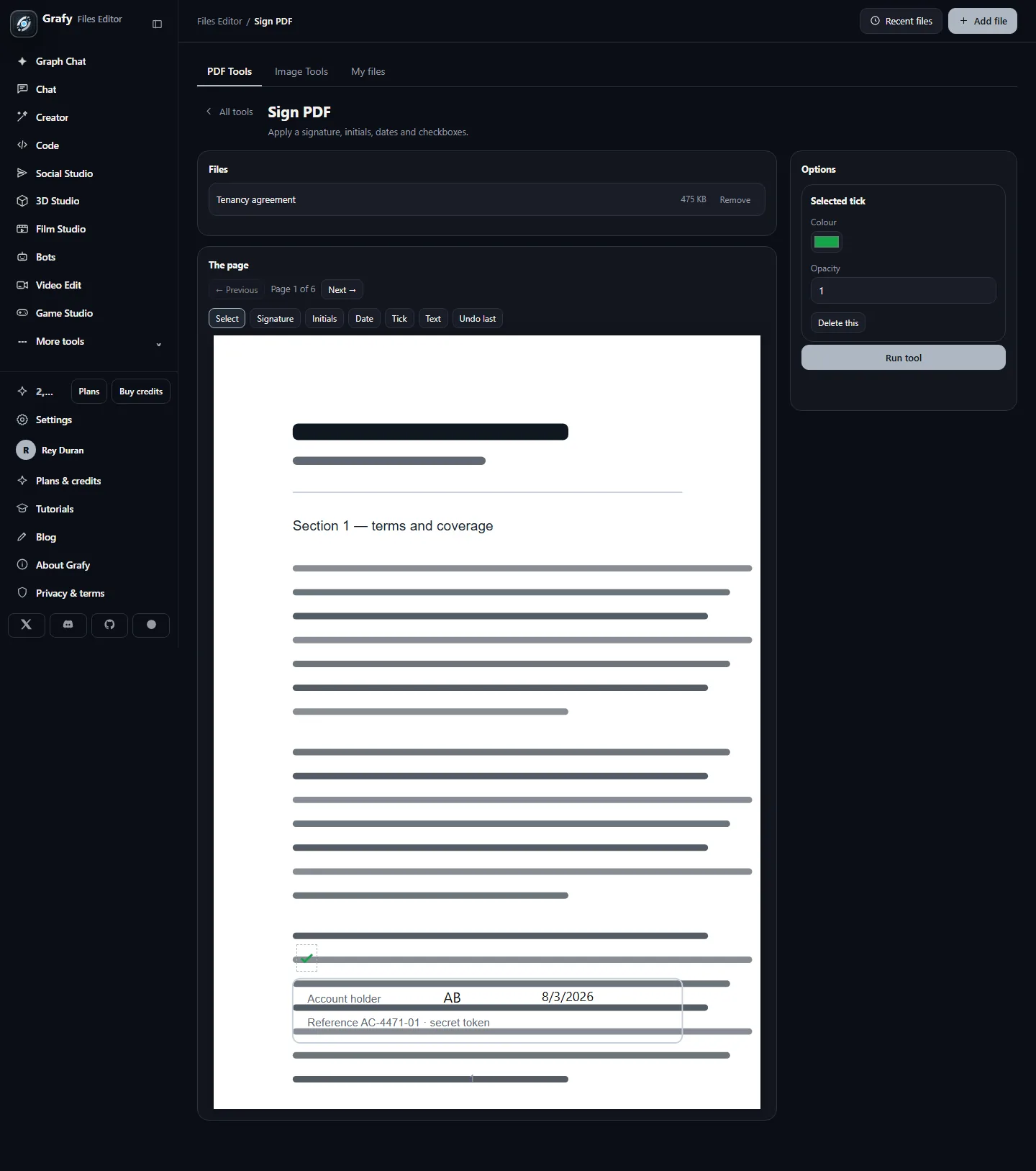
Sign, date and tick
Sign PDF gives you a signature image, initials, today's date, ticks and free text. Place one with a click, then drag it — or move it with the arrow keys and adjust its size and colour in the panel. It is drawn into the page itself, so it looks the same in every reader and cannot be dragged off by whoever opens it next.
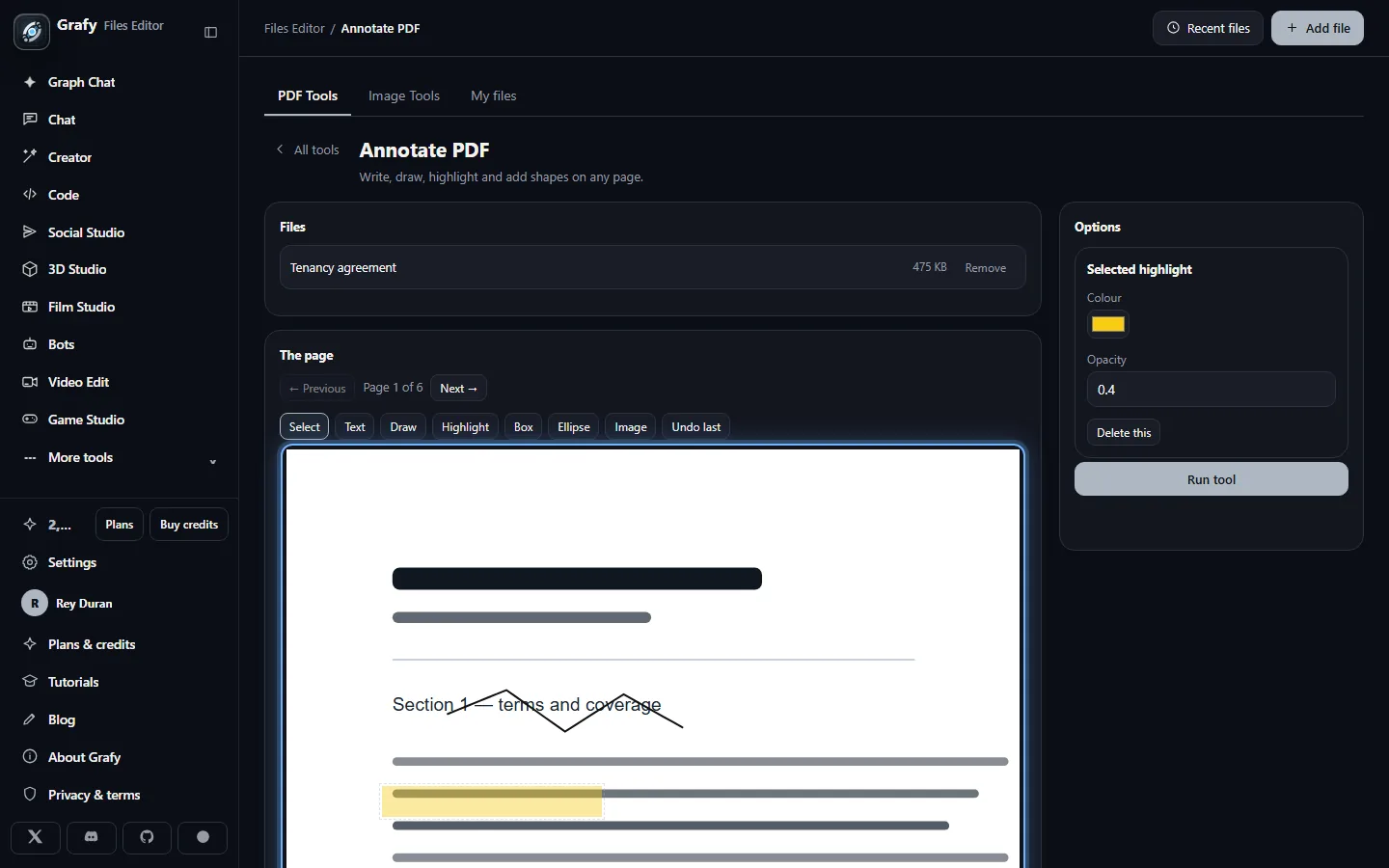
Draw and highlight
Annotate adds freehand drawing, highlights, boxes, ellipses and images; Edit PDF adds white-out for covering something before you type over it. Everything you place can be selected, edited in the side panel and undone.
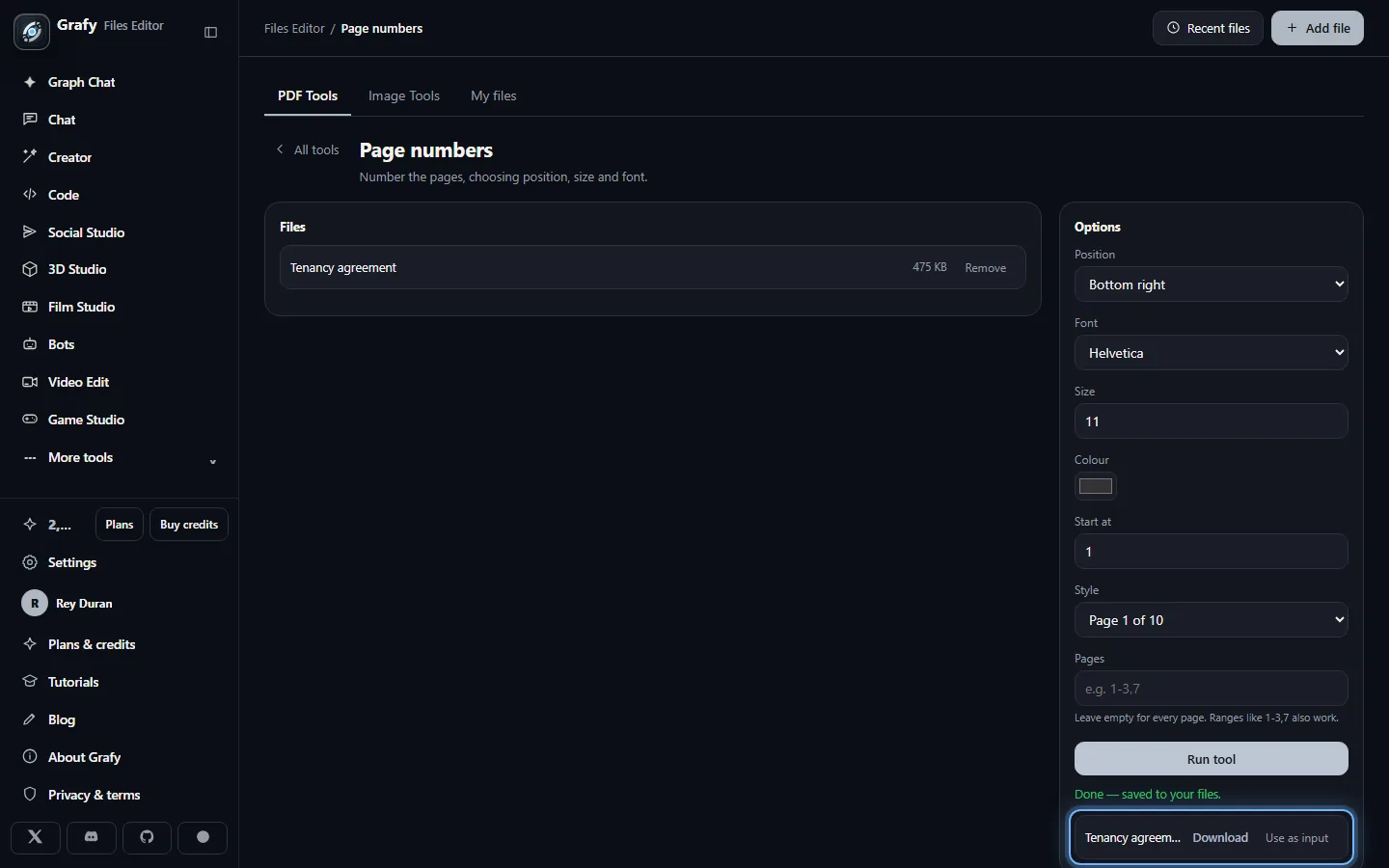
Fill the settings in, run it
Tools without a canvas are a plain form: Page numbers takes a position, a font, a size, a colour, a starting number and a style. Every run saves its result into your files and offers it for download — or as the input to the next tool, which is how a five-step job stays one screen.
Pictures too
Image Tools carries the enhancer — sharpen, contrast, brightness, colour, denoise and enlarge — a size-conscious compressor, and converters to PNG, JPG, WebP, TIFF and HEIF. They take batches: drop forty pictures, convert them all, download them from your files.
Recordings, both directions
Audio Tools does the two jobs that turn speech into a file you can work with and back again. Audio to text takes the formats a recording actually arrives in — .m4a from a phone, .mp3 from a meeting tool, .wav, .aac, .ogg, .flac — and writes out everything said in it as a text file, laid out in paragraphs. Name the spoken language if you know it; it is more accurate than letting the model guess.
Text to speech goes the other way, and the voices have names and characters rather than adjectives: Aria is warm and unhurried, Atlas is deep and steady, Oxford reads like a formal report. Press play beside any of them to hear the line before you commit to it — the preview uses the settings you have set, so what you hear is what the file will sound like. Then set the speed, the delivery, and how long a pause each blank line in your document becomes. These are real speaking voices, not the synthesiser sound: on a server with no natural voice configured, the tool says so and does nothing rather than handing you a robot.
Going deeper
Your files
There is no separate storage here. A document in the Files Editor is an ordinary asset library row — the same one the graph app's Assets panel and the shared picker read — so a PDF you split becomes available everywhere in Grafy the moment it is made, and a picture you generated in Creator can be turned into a PDF without downloading and re-uploading it. Star anything into Favourites, search by name, and rename freely: the name you see is a title, so renaming never breaks a link. Deleting is soft — the file moves to Deleted and comes back with one click.
Pages & layout
Organise reorders, rotates and drops pages in one pass.
Extract pulls a range out, either as one document or as a file
per page. Split cuts a document into parts — every page, fixed
chunks, or at the page numbers you name. Merge joins several PDFs
in the order shown, which you can rearrange before running.
Compress repacks the file and recompresses the images inside it;
text is never rasterised, so a compressed document is still searchable.
Anywhere a tool asks for Pages, it takes what you would write by
hand: 2, 1-3,7, 4- for "four to
the end". A number outside the document is an error, not a silent
no-op.
Signing & annotating
Three tools share one canvas and differ only in what their toolbar offers: Sign (signature, initials, date, tick, text), Annotate (text, drawing, highlight, box, ellipse, image) and Edit (text, image, box, white-out, drawing). Everything is placed as a fraction of the page and drawn into the page content at save time — flattened, not left as an annotation object — so the result renders identically in every viewer. Marks are draggable, keyboard-movable, individually editable and removable, and Undo last steps back through them.
Redaction
Covering text with a black box is not redaction: the words stay in the file and copy straight out of it. This tool marks the areas and then applies them, which removes the underlying text and image data before the file is written. Boxes are drawn per page; a search phrase catches every occurrence across the whole document. If nothing matched, the run says so rather than handing back an unchanged file that looks done.
Passwords
Password protect encrypts the document (AES-256) and lets you decide whether printing and copying text are allowed. Unlock takes a password you already know and writes the document out without encryption. Open a protected file in any other tool and it will ask you to unlock it first rather than fail halfway through.
Converting
File converter is the one-tile version: pick a file, pick a format, and it works out how to get there — any supported format to any other. Some pairs are one step and some are two, and you do not have to know which: Markdown to Word is rendered to HTML and handed to the document converter, a spreadsheet to PNG is printed to PDF and then rasterised. If a pair genuinely cannot be done, it says so before you wait, and it says whether that is this server or the conversion itself.
The named tiles are the same converter with the format already chosen, plus their own settings: resolution and quality for image output, page size, orientation and margin for Images to PDF and Markdown to PDF, font and page size for TXT to PDF. PDF to text extracts the text layer — and tells you to run text recognition first if the document has none, rather than handing you an empty file.
Markdown to PDF is worth calling out because it is not the plain-text path: headings keep their weight and size, lists keep their markers, tables keep their rules, and code blocks stay monospaced. It also embeds a real font, so Greek, Cyrillic and other non-Latin text comes out as itself rather than as question marks. HTML to PDF goes the same way. Both, along with TXT to PDF and the general converter, have a paste box: most of what people convert is already on a clipboard, and this saves saving it as a file first. Nothing is saved until you press Run tool.
Every tool also has its own address — /files/markdown-to-pdf,
/files/pdf-to-word, and so on. Bookmark one, share one, or
send it to somebody without an account: they get a page that does the
conversion, and you get the tool already open.
Pictures
The enhancer runs in a deliberate order — denoise, enlarge, then brightness, colour, contrast and sharpness — because sharpening before a denoise pass amplifies exactly what the denoise is there to remove. The compressor keeps the format it was given (a PNG stays a PNG) and can bound the longest side. Converters handle PNG, JPG, WebP, TIFF, BMP, GIF and HEIF; transparency is composited onto a background colour you choose whenever the target format has no alpha channel, so a transparent logo saved as JPG does not come back with a black box behind it.
What your server can do
Two features depend on software installed alongside Grafy rather than on your account: text recognition needs an OCR engine, and the Office conversions need a document converter. Where one is missing, the tile stays in the grid marked not available here instead of disappearing or failing after you have uploaded a file — and the OCR language list only offers languages your server actually has.