Creator — from blank page to four options
Open Creator →Creator is the fast lane: describe a picture or clip, get results in a feed, and never start from zero — a wall of several hundred curated starting points prefills the prompt, mode and shape for you. It drives the same generation backend and sessions as Graph Chat.
Walkthrough: template to takes
The composer is the whole app
One input, then chips for everything that matters: Image / Video / Parallax mode, the routed model, the aspect, the quality tier and the result count. Quick actions set several at once.
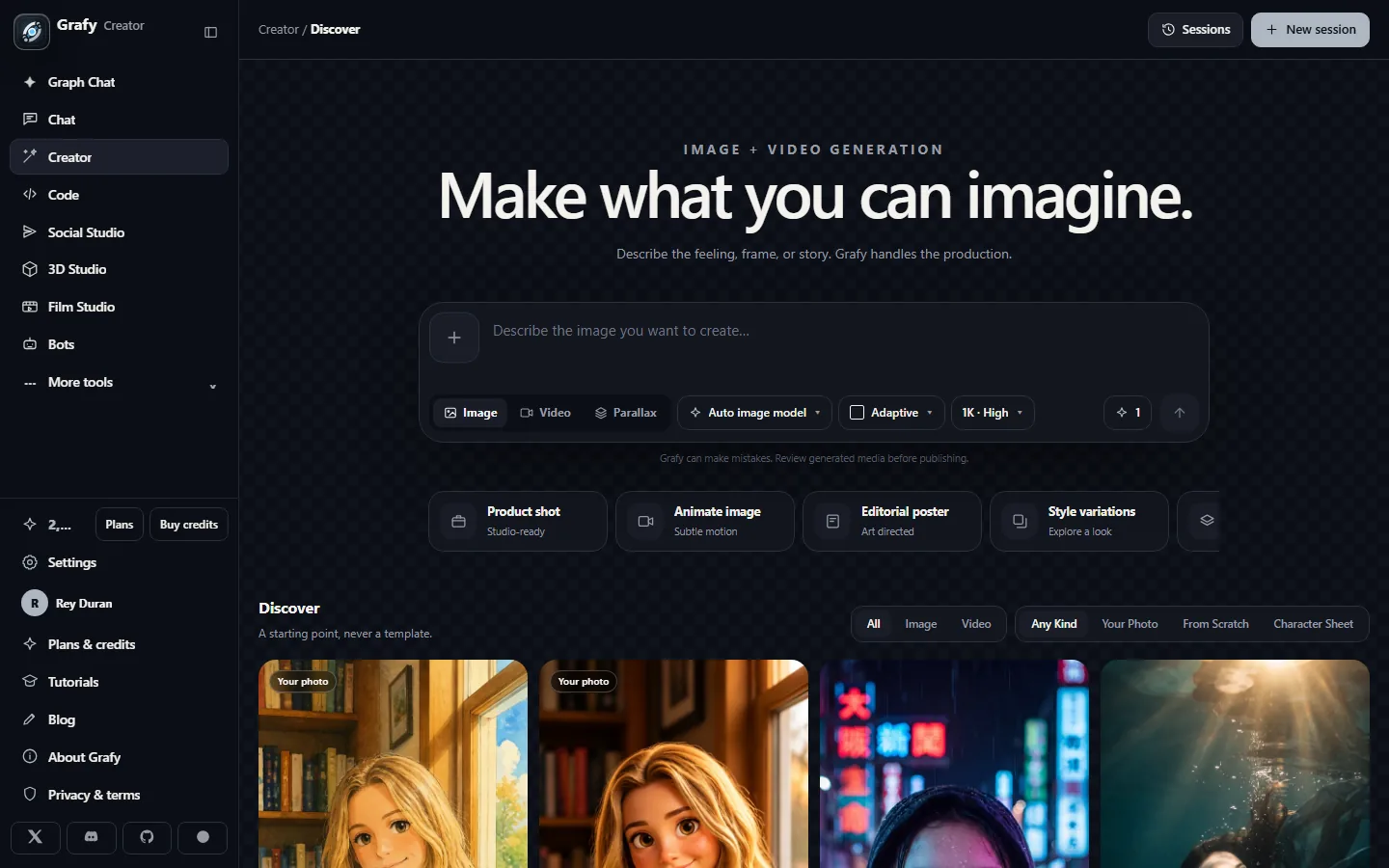
Browse the Discover wall
A living catalogue of looks. Filter by Image / Video, or by kind: Your Photo, From Scratch, Character Sheet.
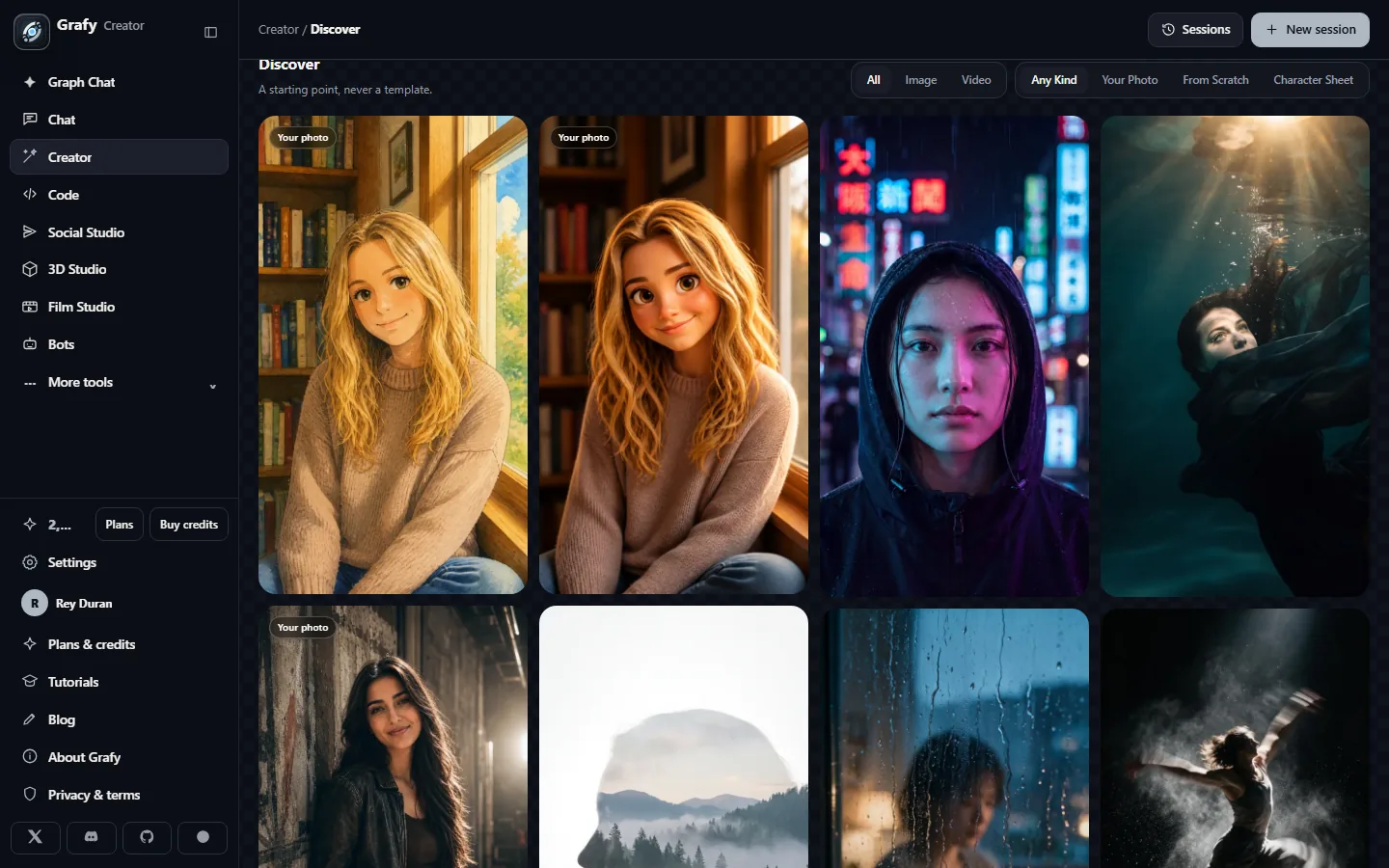
A tile is a starting point
Hovering a “Your photo” tile previews its before/after wipe.
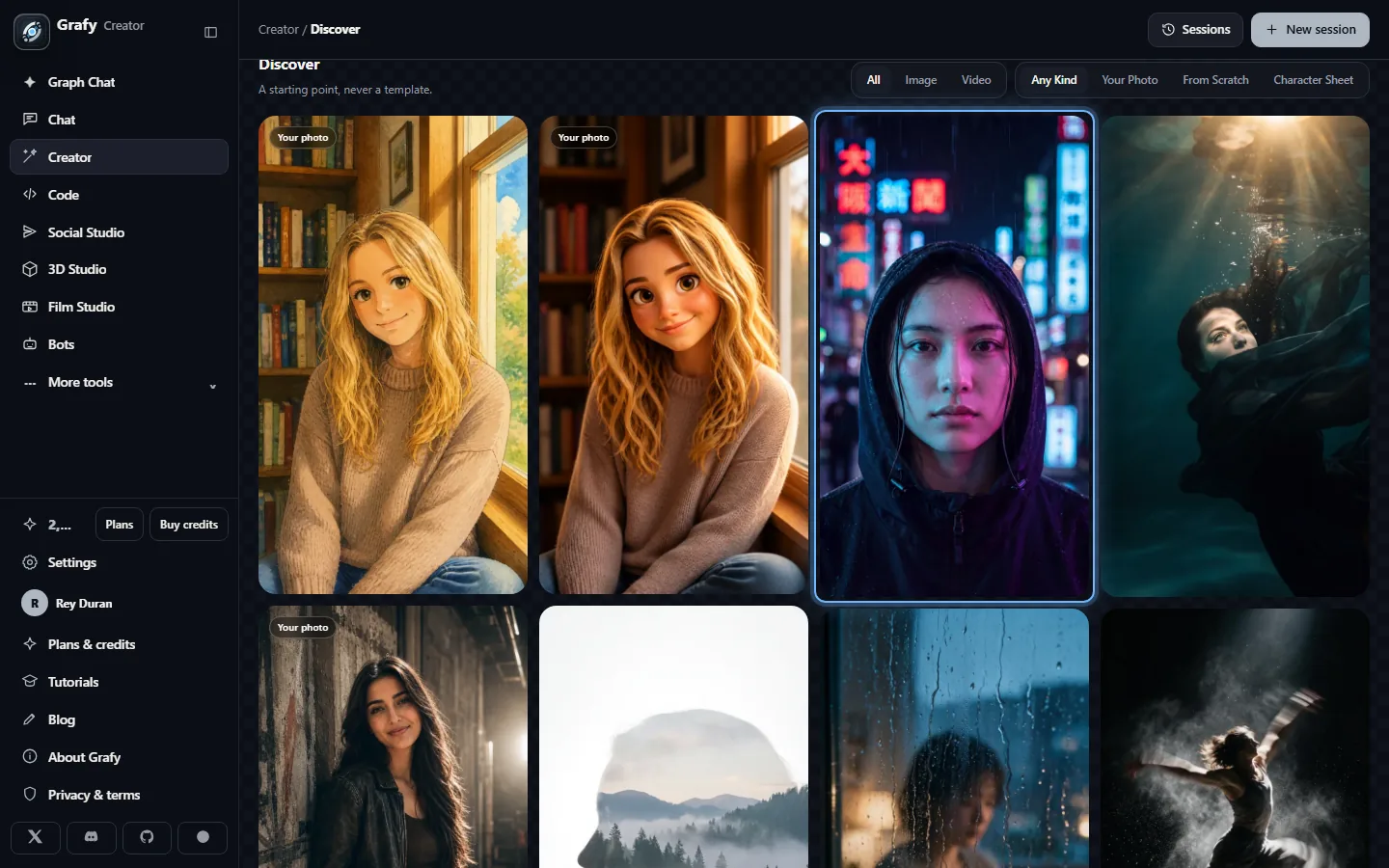
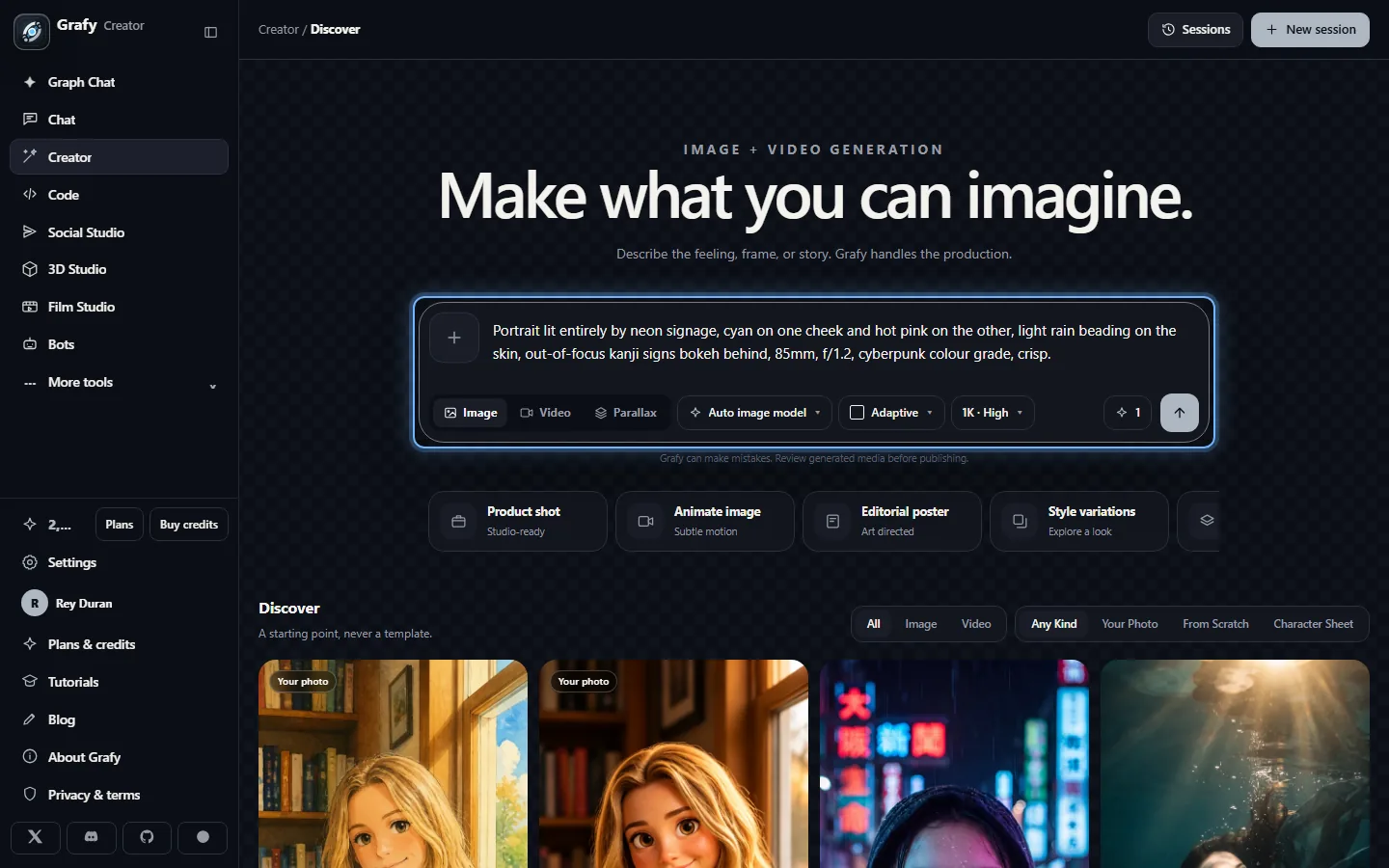
…and it prefills the composer
Clicking drops the full prompt, mode and shape into the composer — ready to edit or send as-is. Nothing is locked in.
Results land in a feed
Each card carries download, copy, re-run and publish actions; the composer docks and stays live while jobs run.
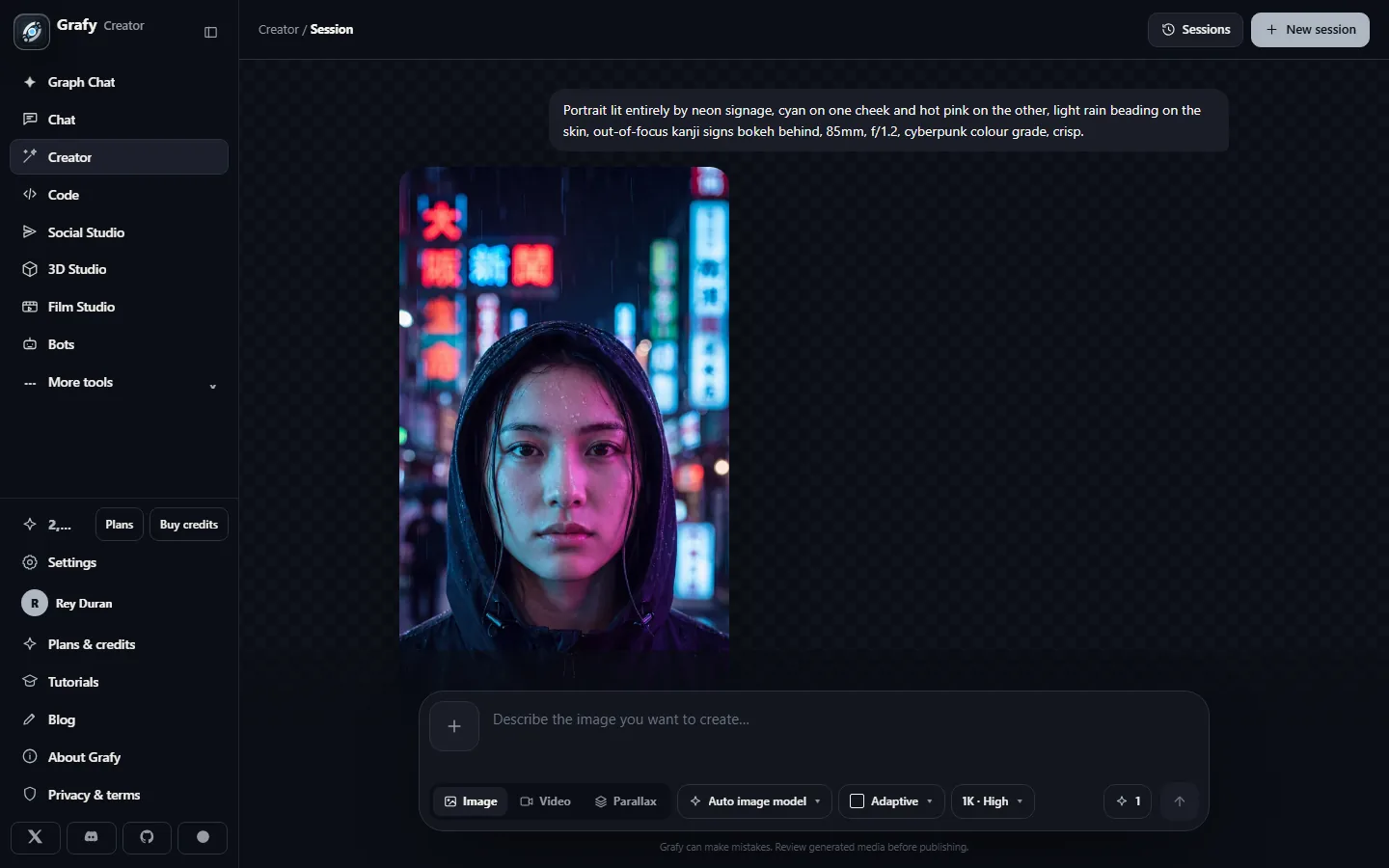
Ask for four at once
One submit fans out into sibling jobs; the running counter tracks them while you type the next idea.
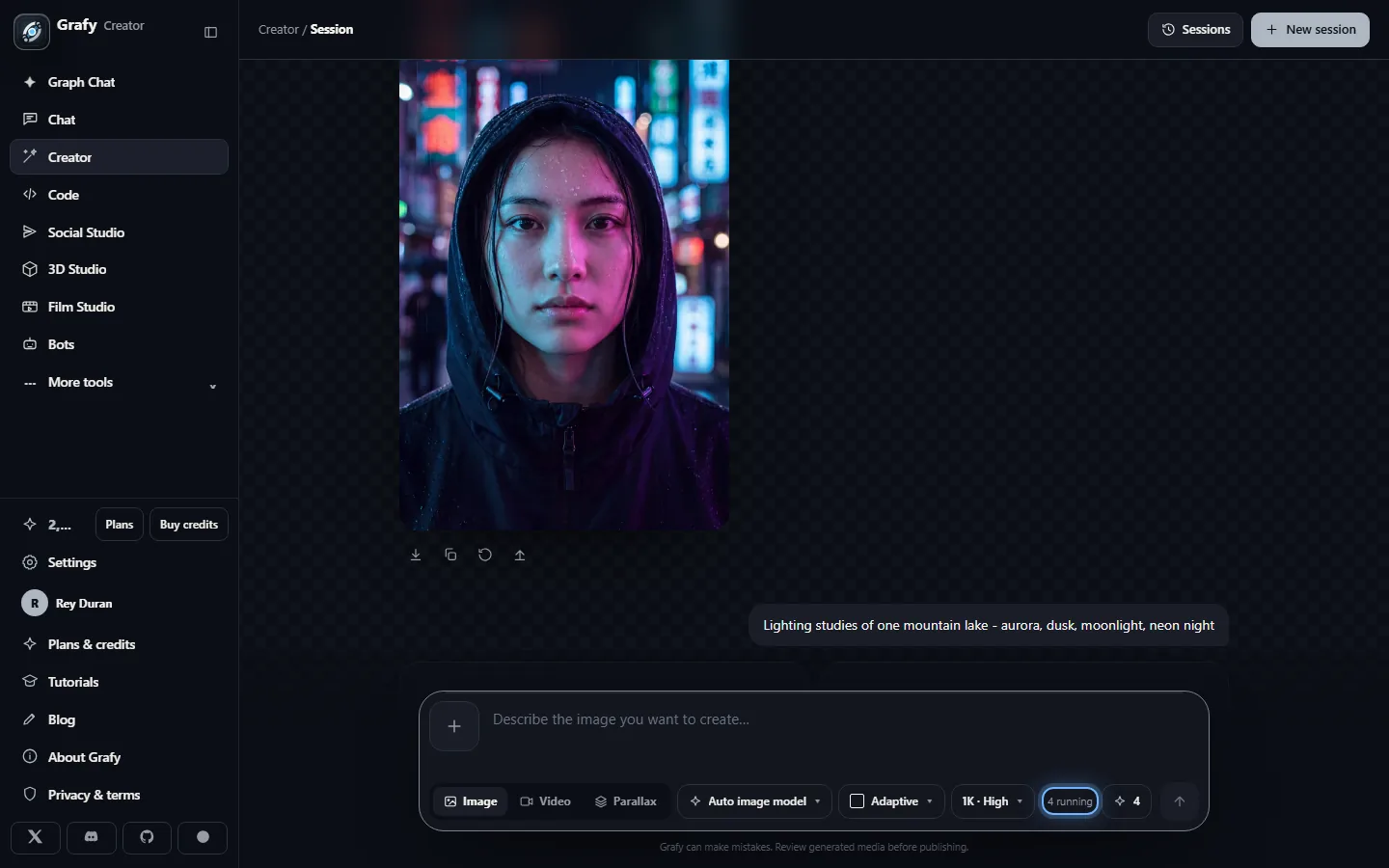
Compare takes side by side
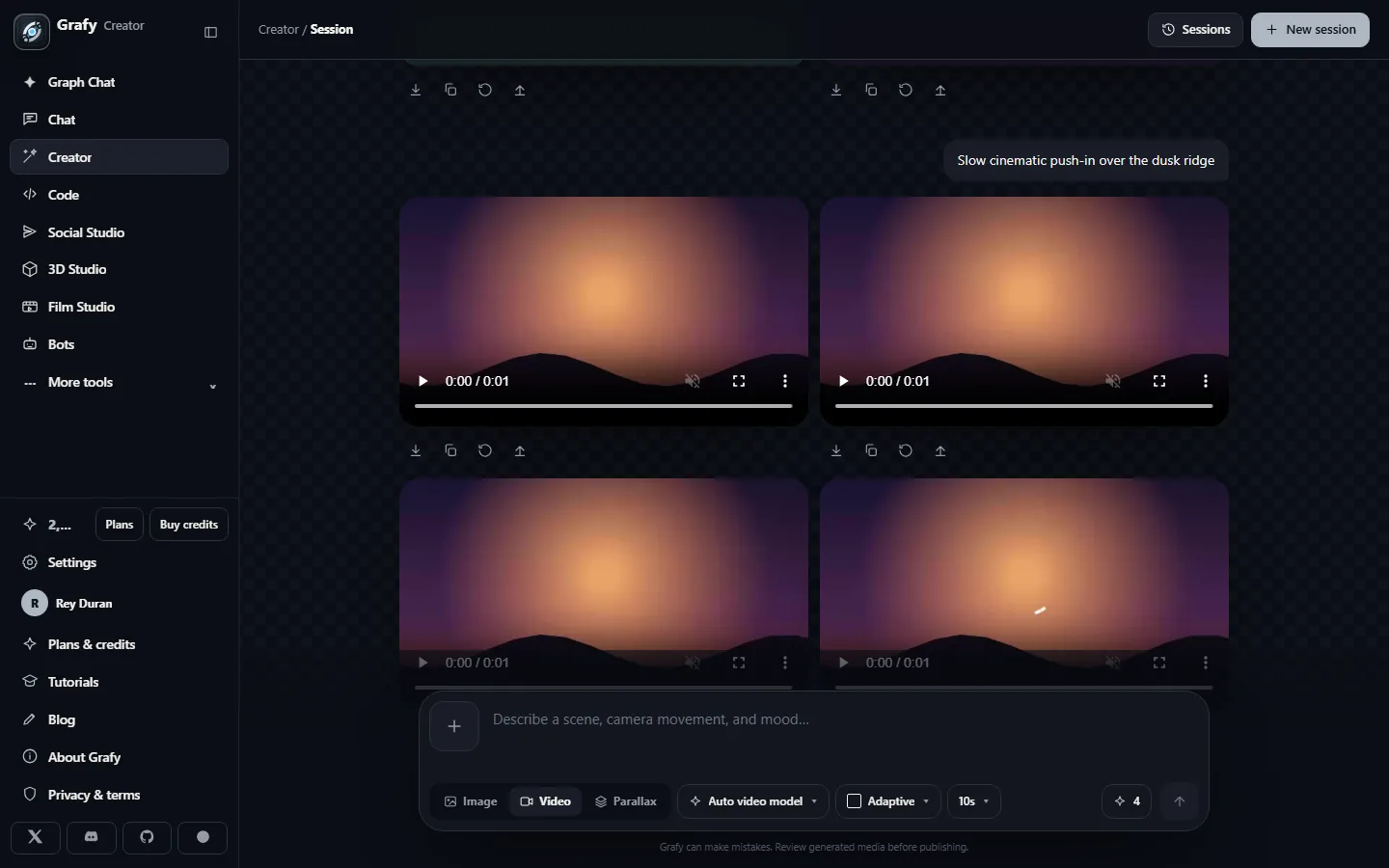
All four takes land in one grid under the prompt that made them — keep the winner, re-roll the rest.
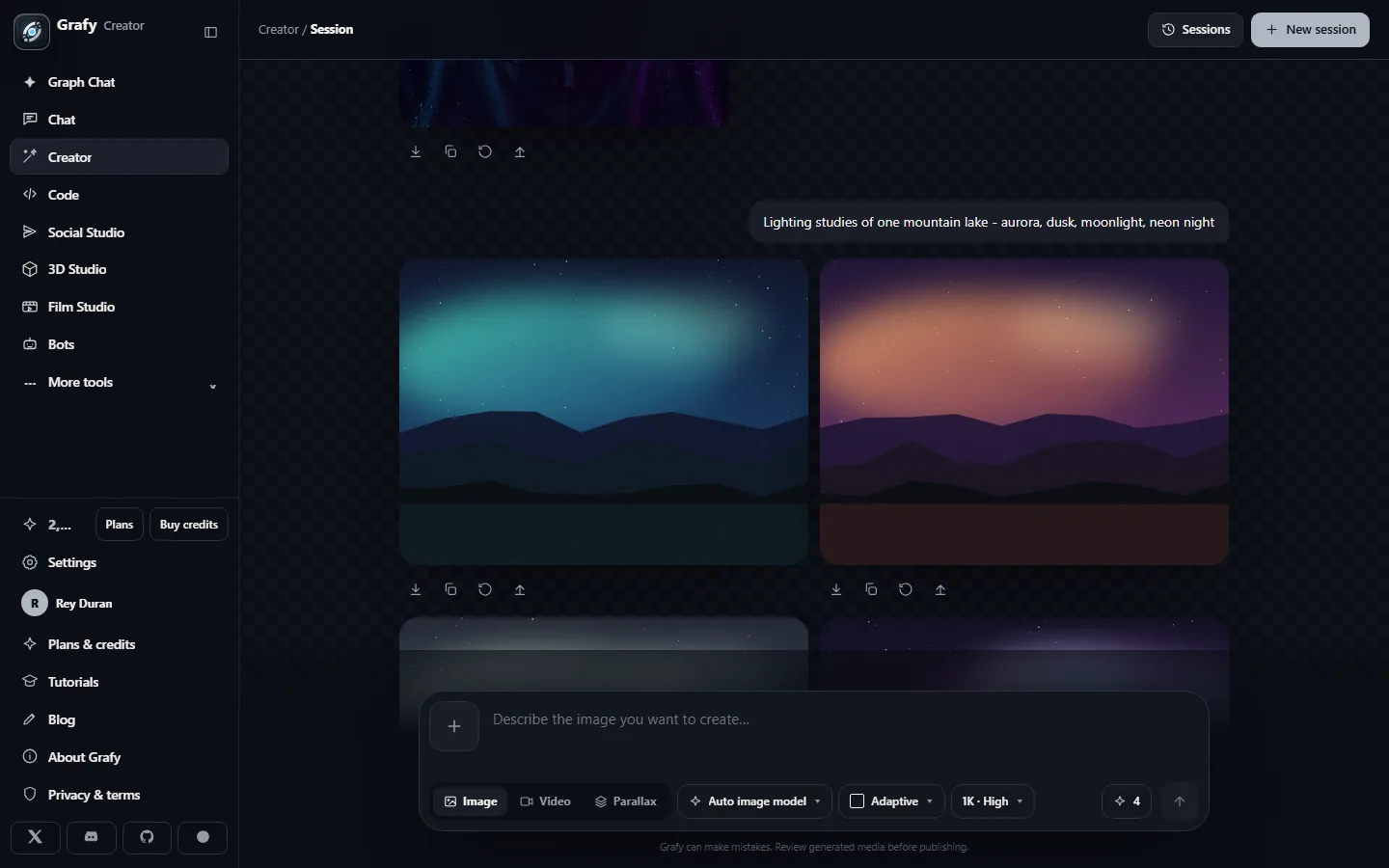
Switch the same composer to video
Video mode swaps in duration and aspect pickers and routes to a video model — everything else works identically.
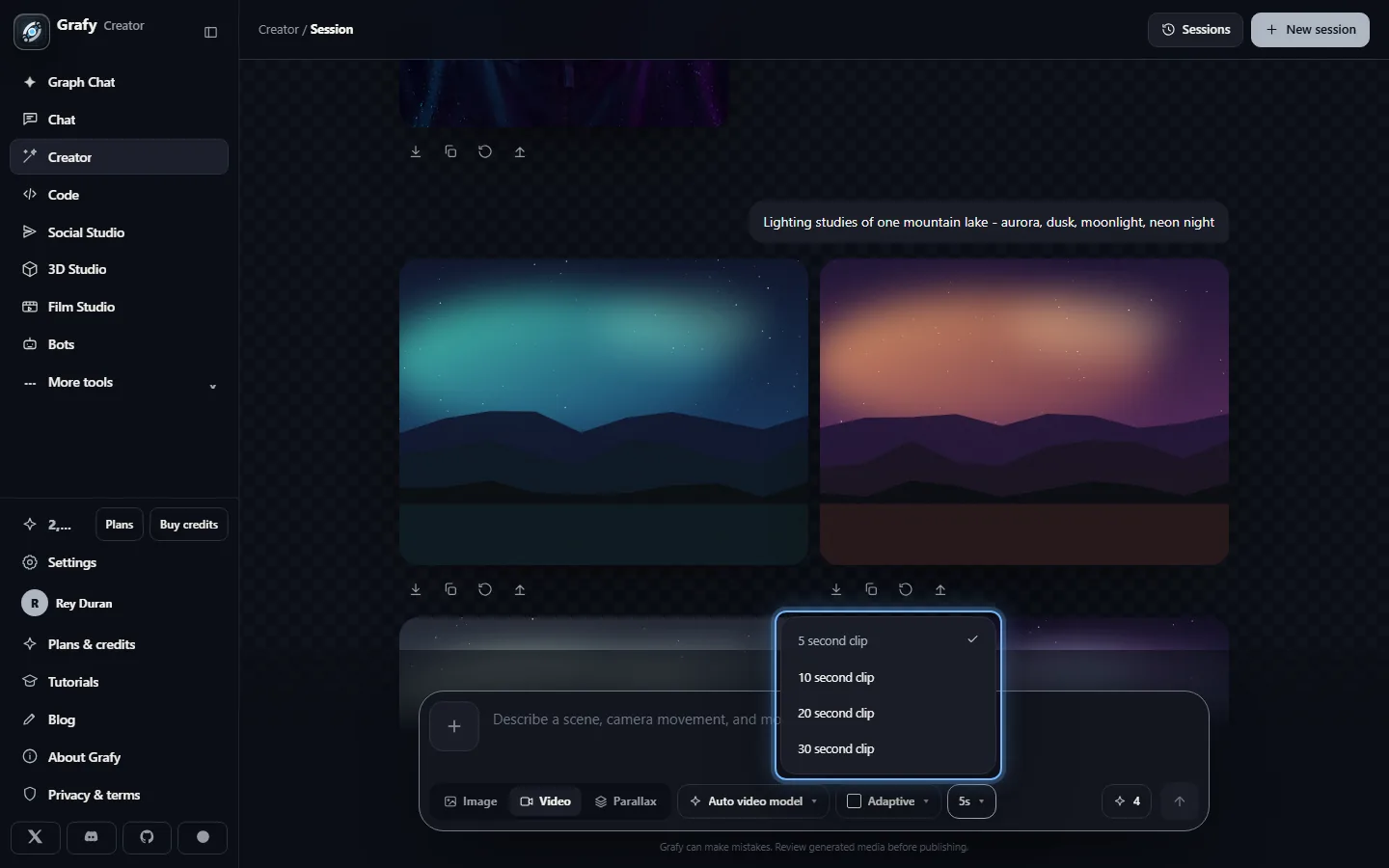
Clips land like images do
Video cards come back with an inline player.
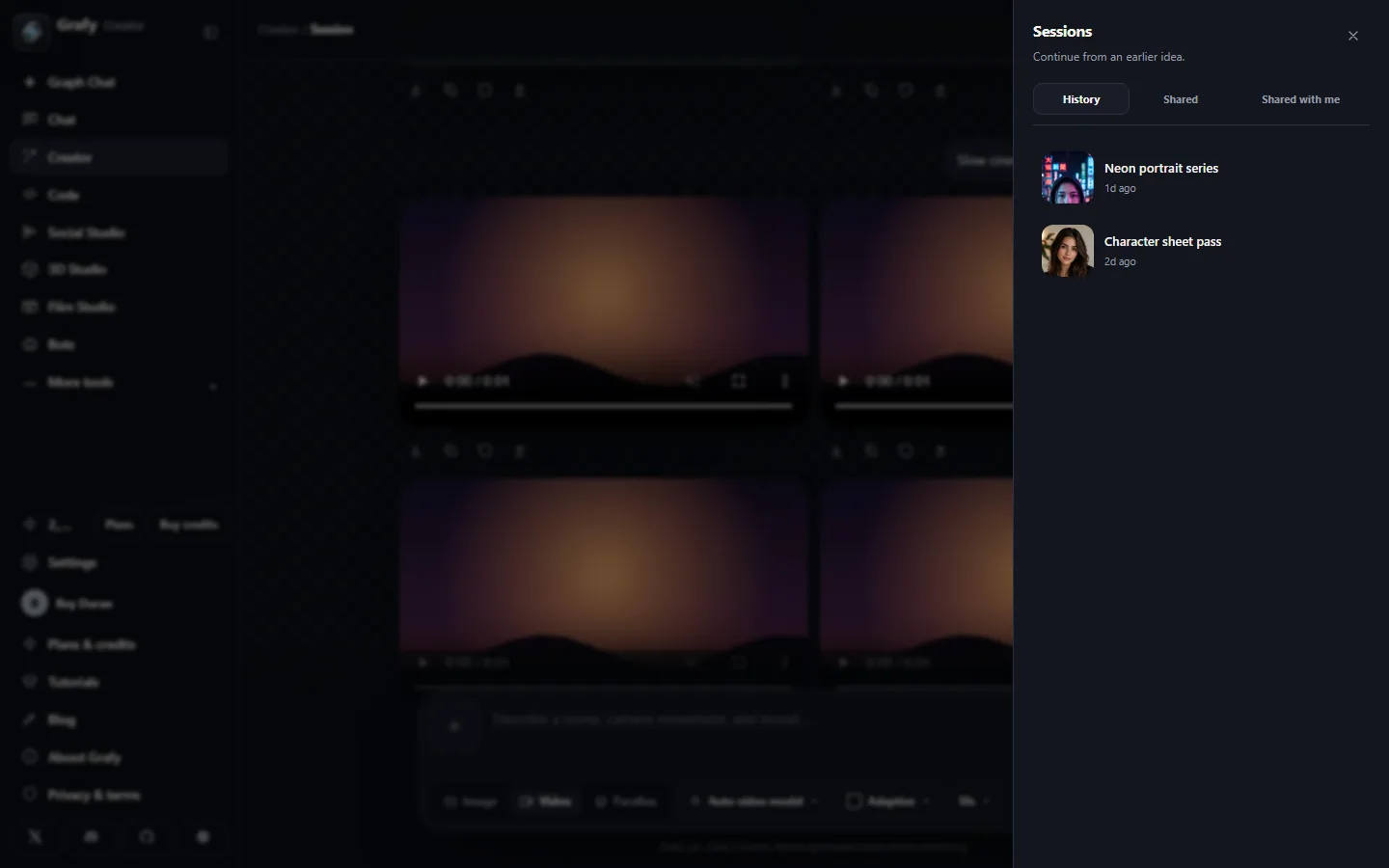
Every session is kept
The history rail lists past Creator sessions — the same store the Graph app reads, so anything here can be reopened as a graph and branched further.
Going deeper
The Discover wall & template kinds
“A starting point, never a template” — every tile is just a prompt plus settings, fully editable after it lands in the composer. Tiles come in three kinds:
- Scenes — complete looks built from scratch: portrait lighting setups, editorial styles, environments.
- Transforms — styles applied to a reference photo you provide (the “Your photo” chip); their artwork shows the before/after wipe so you know exactly what the style does to a real image.
- Character sheets — turnarounds, expression grids, pose cycles and model sheets that lock a character's identity across many views — the groundwork Film Studio needs before shots can stay on model. Photo-driven sheets ask for a reference face; designed-from-nothing sheets don't.
Video tiles work the same way but prefill video mode; their tile artwork is a frame of the clip the template produces.
Multi-generation
The count chip (1–4) turns one submit into parallel sibling jobs that resolve independently — a slow take never blocks a fast one, and the composer stays usable throughout, so turns can overlap. Each take is its own session node with its own seed; re-roll any single card without touching its siblings. The running counter in the header tracks everything currently in flight.
Video mode
Video swaps the composer's chips: a duration picker, an aspect picker (widescreen 16:9, vertical 9:16, portrait 4:5 and square), and an auto-routed video model you can override. Text-to-video works from nothing; attach an image and it becomes image-to-video, animating your still with the prompt as direction. Results play inline and download as MP4.
Parallax scenes
The third mode builds a layered depth animation from a prompt or a photo: Grafy plans the scene as separate planes (background ridge, middle water, foreground pines…), renders each layer, and composites a camera drift whose parallax sells real depth. The layer stack is stored on the result node, so you can inspect exactly how the scene was built.
Publishing & the shared library
Every result card can go three places: download to disk, save to the asset library (where Chat, Code and 3D Studio can pick it up), or publish to the Community gallery along with its prompt so others can learn from it. Publishing is reversible — you can unpublish your own pieces at any time from the gallery.