Graph Chat — the branching workspace
Open the app →Instead of a linear chat log, your work becomes a graph: every prompt, image, video, text answer, edit and merge is a node you can return to, branch from, or compare against — so exploring ten directions never destroys the one you liked.
Walkthrough: your first session
Start a session
A fresh session opens on three starting points — New graph (blank generation graph), Edit media (upload an image or video to edit) and Map a file (turn a paper, doc, spreadsheet or source file into a navigable mind map). Or just type: the prompt composer drives everything.
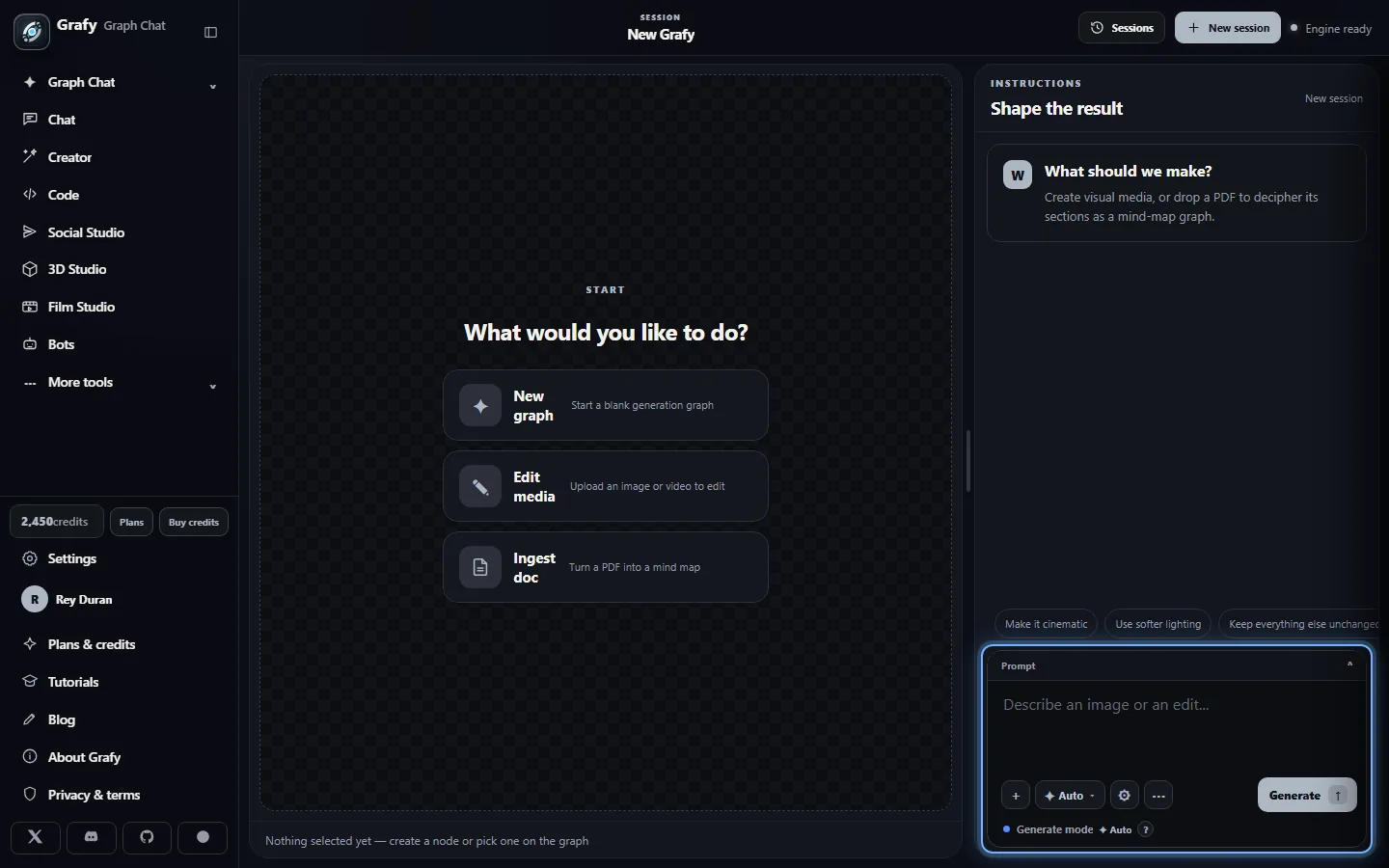
Say what you want back
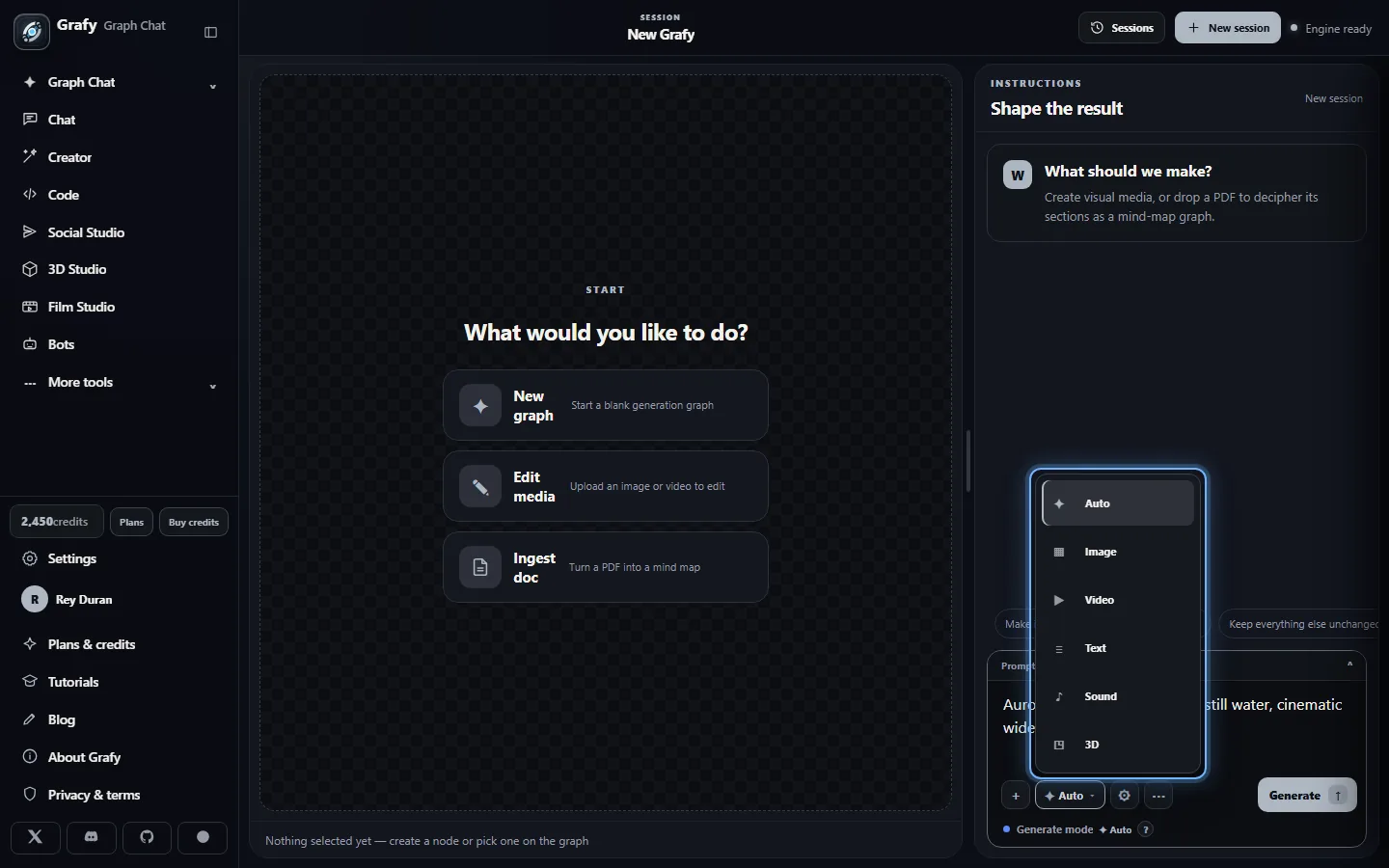
The modality chip opens this picker. Auto lets Grafy route the request; or pin the response to Image, Video, Text, Audio or 3D Model. The footer keeps a live credit estimate before you commit.
Watch it work — without waiting on it
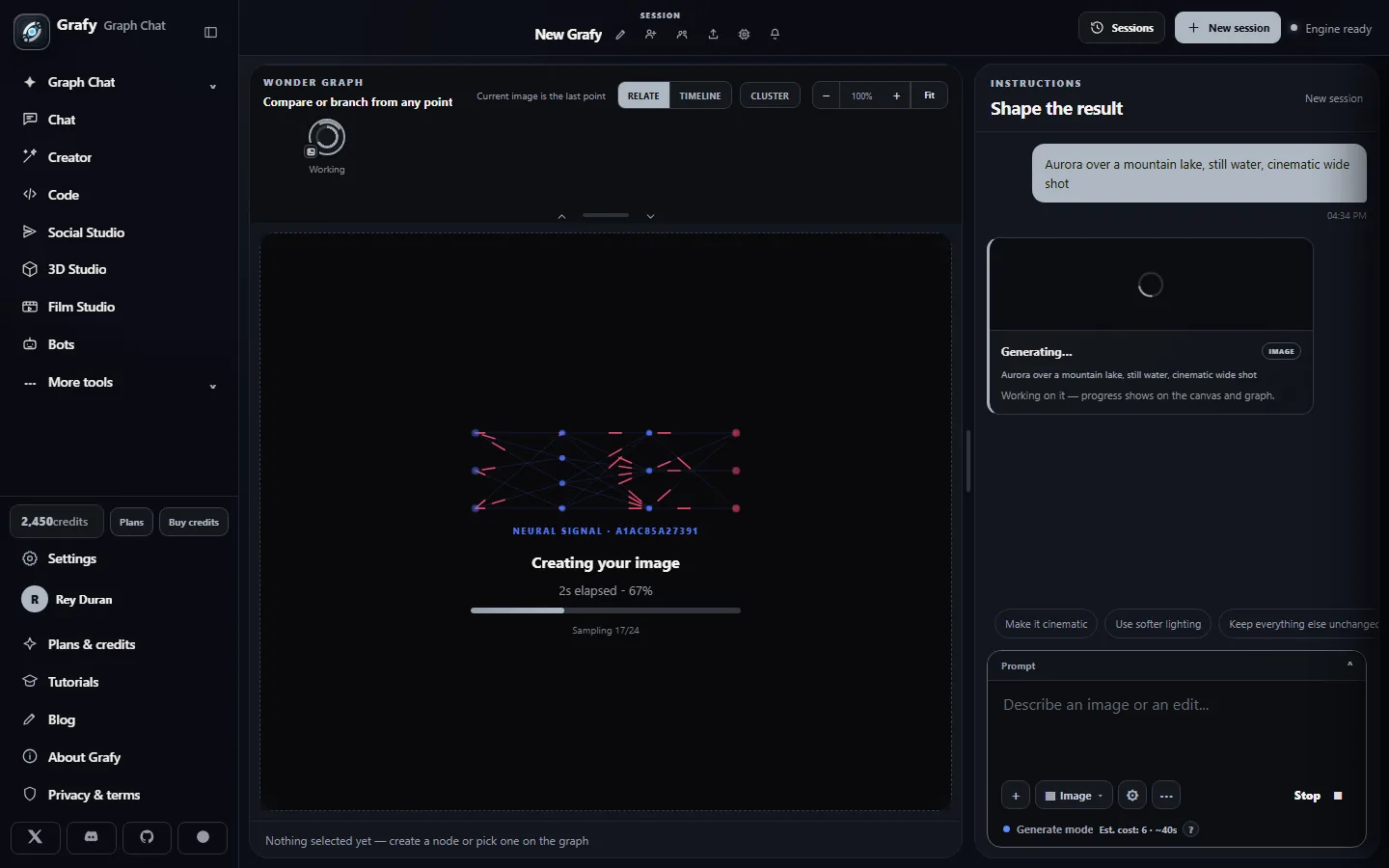
Press Generate and the canvas shows the live pipeline: elapsed time, percentage, and the sampler stage reported straight from the engine. Other branches stay interactive while jobs run.
The first node lands
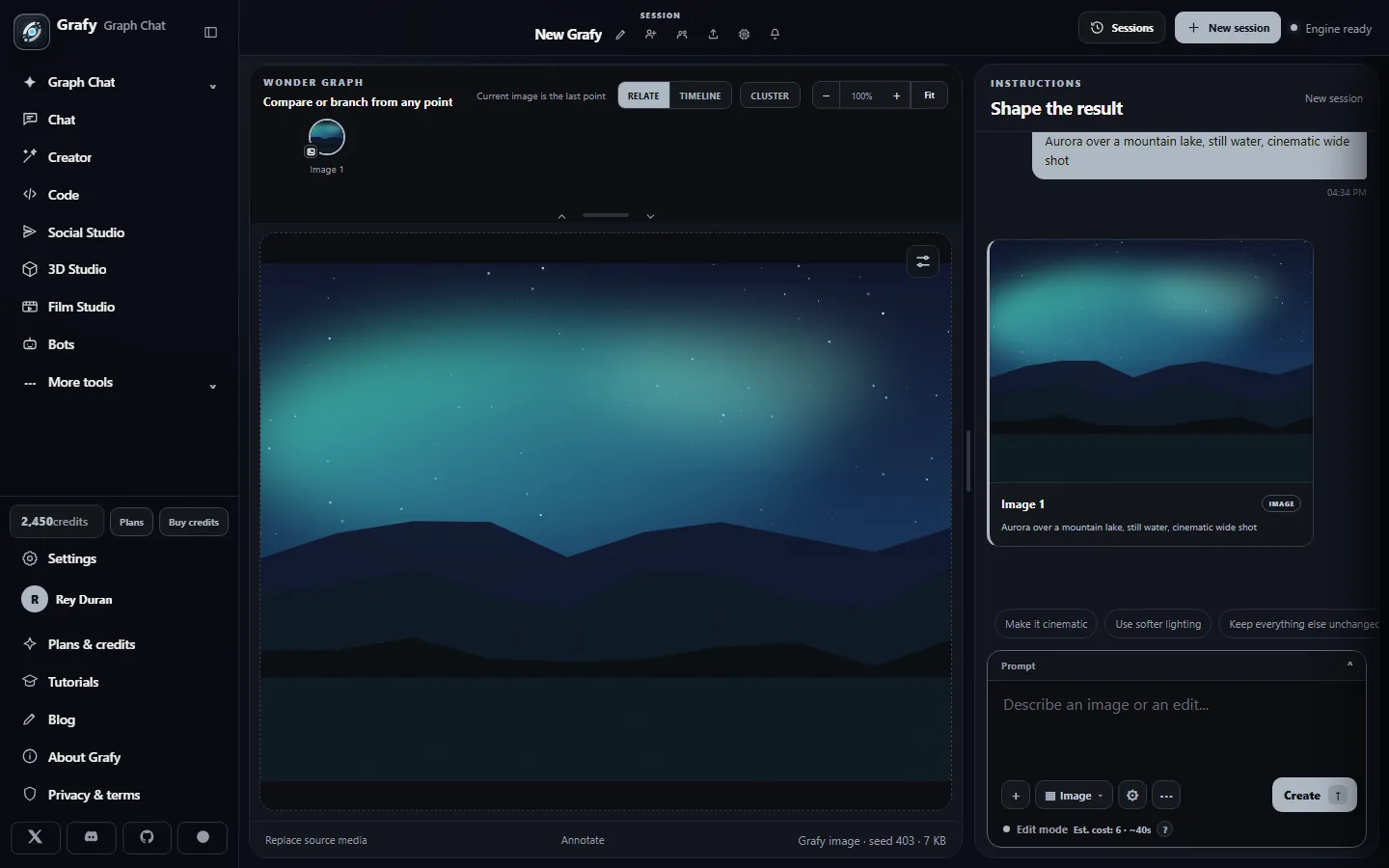
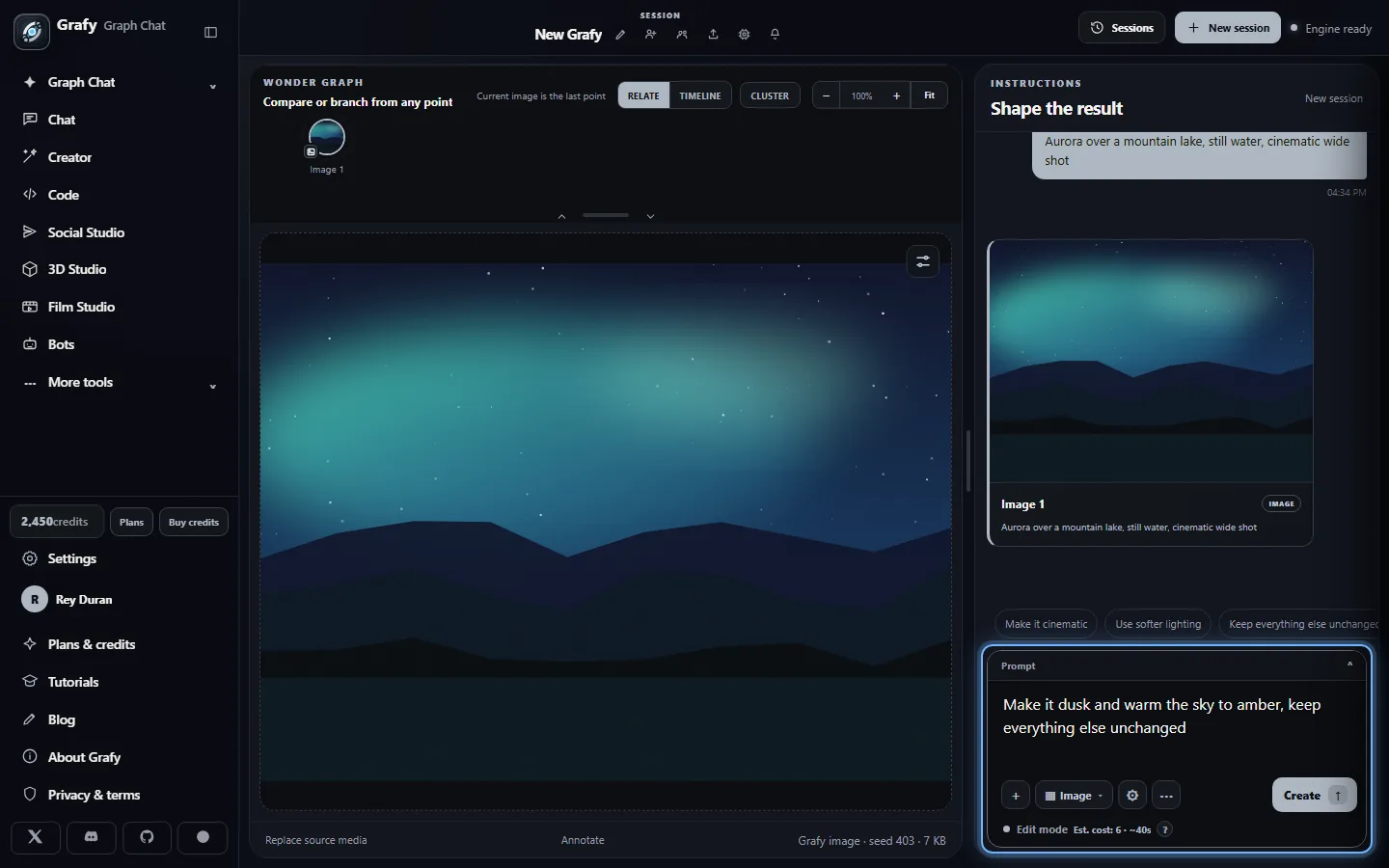
The result becomes the canvas image and a node in the graph strip. The footer records provenance (image size, seed); the right rail card carries the prompt; suggestion chips offer one-click follow-ups. The composer flips to Edit mode automatically.
Refine with plain language
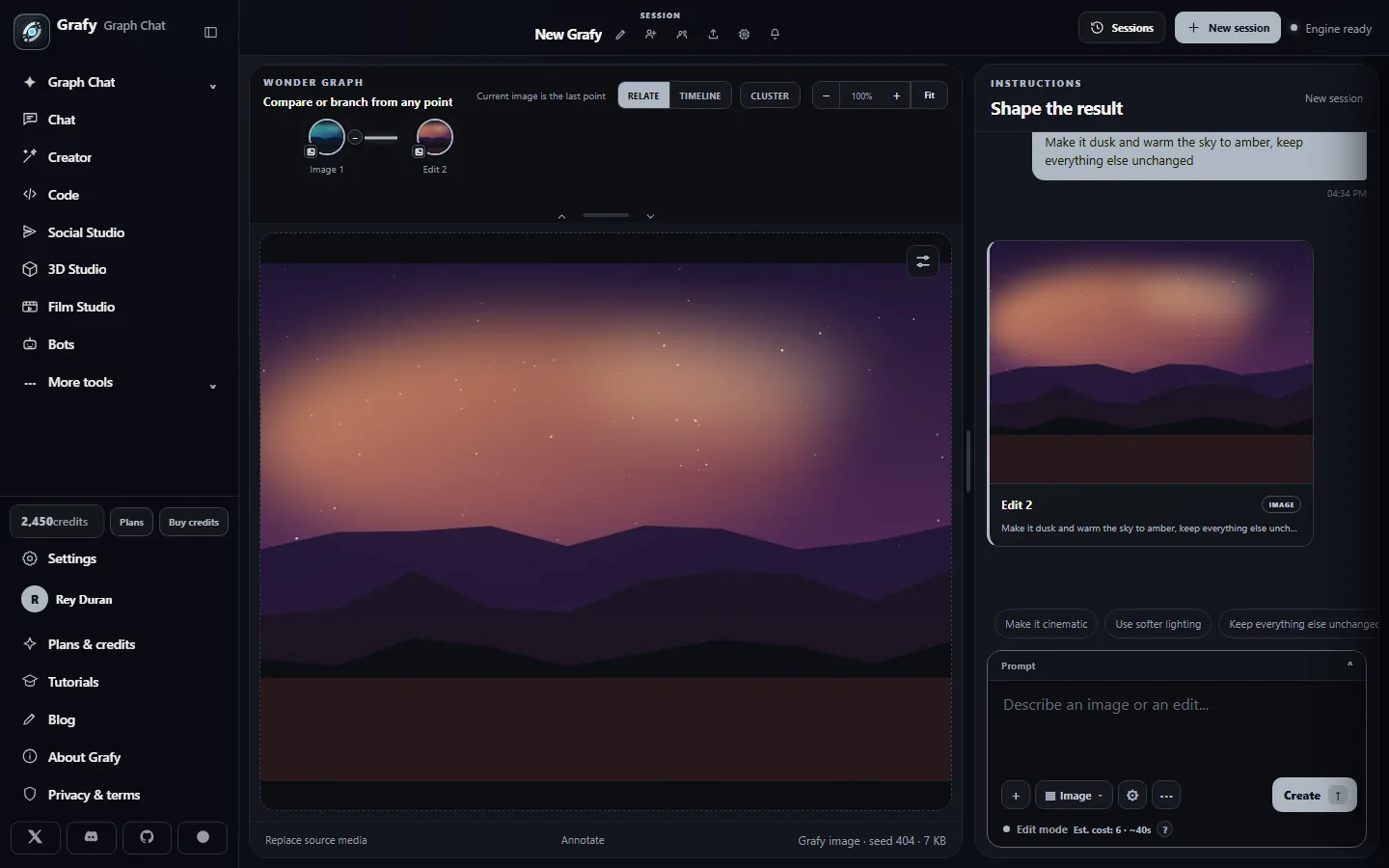
Follow-ups are instruction-based edits: describe the change, keep the rest — “Make it dusk and warm the sky to amber, keep everything else unchanged.”
Edits are children, not overwrites
The dusk version arrives as a new node linked to its parent — the original is untouched and one click away. Every node stores its source, instruction, seed and model.
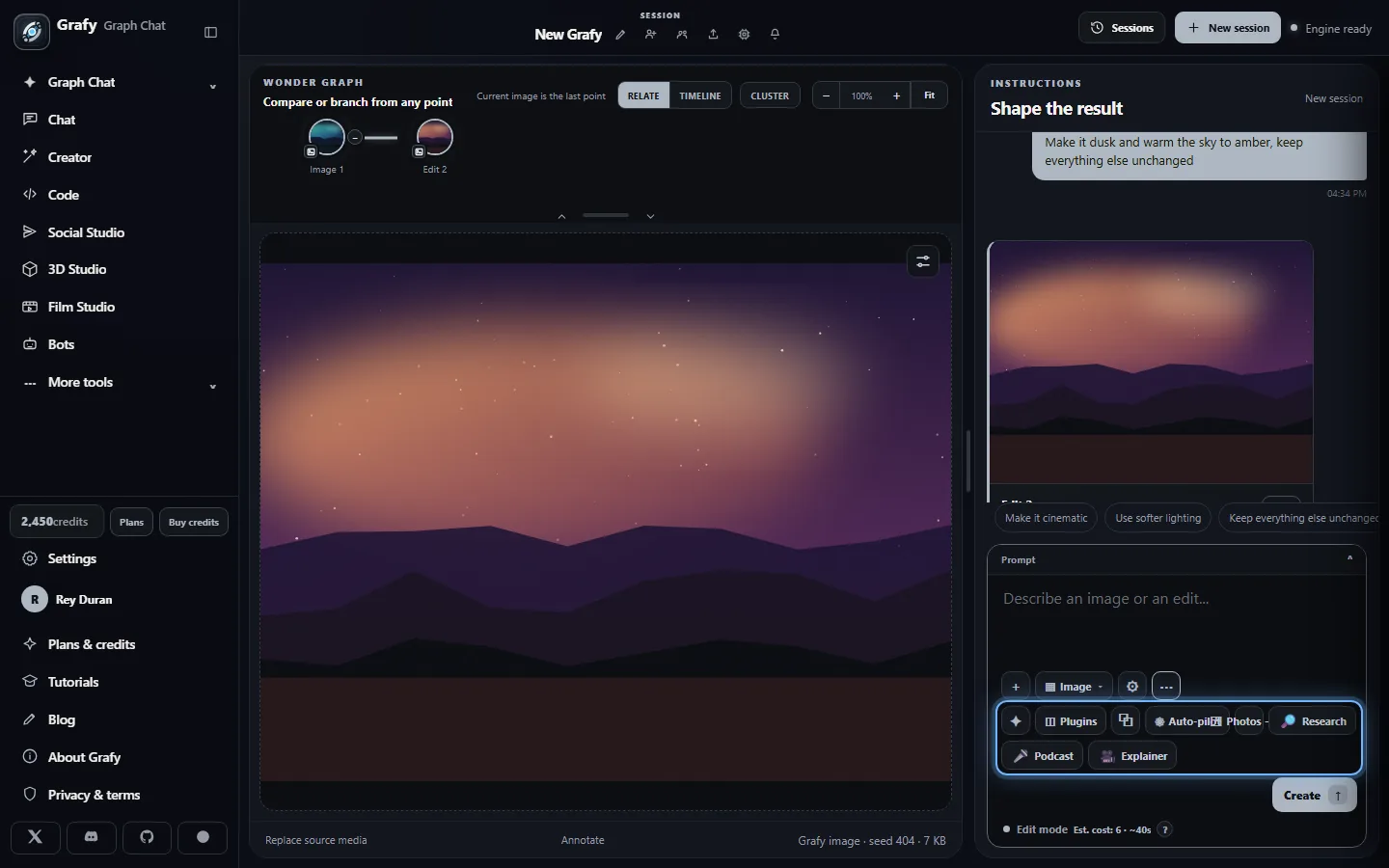
Find the power tools
The composer's overflow menu holds Prompt Studio, Plugins, Batch and Auto-pilot — each covered in the deep dive below.
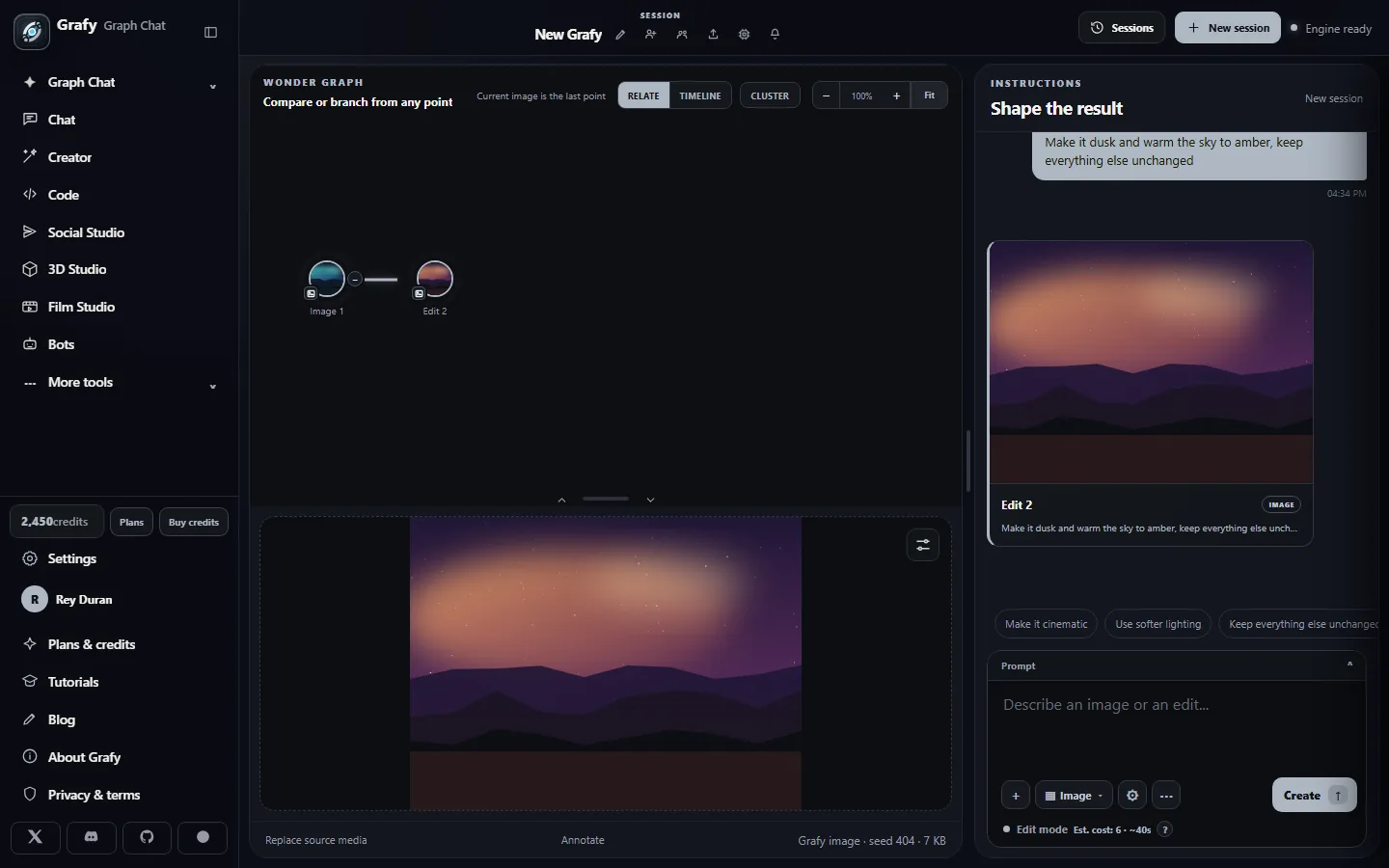
Read the Explore graph
Lay nodes out by relationship (Relate), by creation time (Timeline), or grouped into concept Clusters; zoom and Fit keep large graphs navigable. Click any node to make it the current canvas.
Branch without fear
Generating from an earlier node creates a sibling, not a replacement — compare directions side by side, keep them all, and merge the winners later.
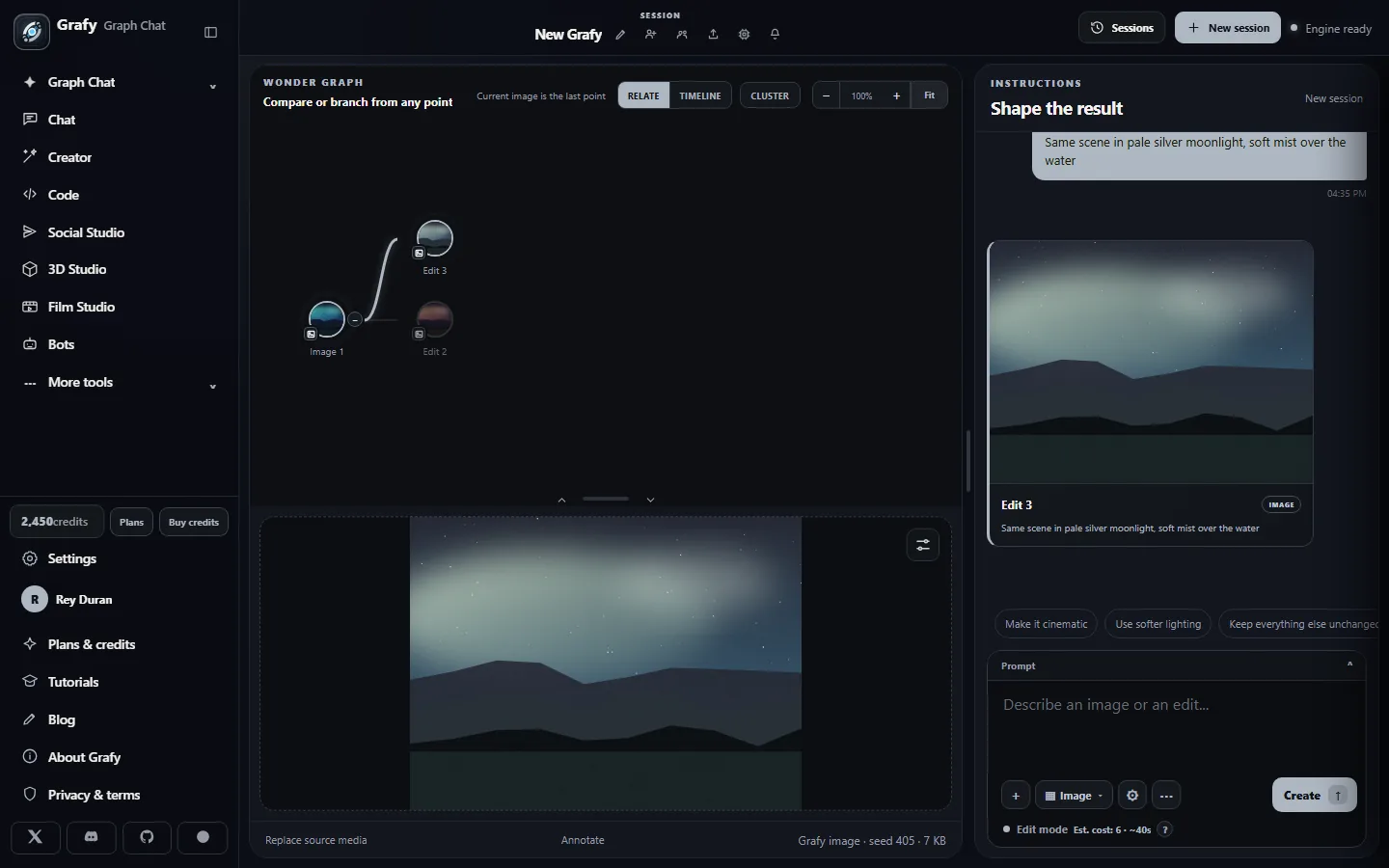
Come back any time
The Sessions archive keeps every graph with live thumbnails, Shared / Shared-with-me tabs, and whole-session comparison. Background jobs keep running while you're away.
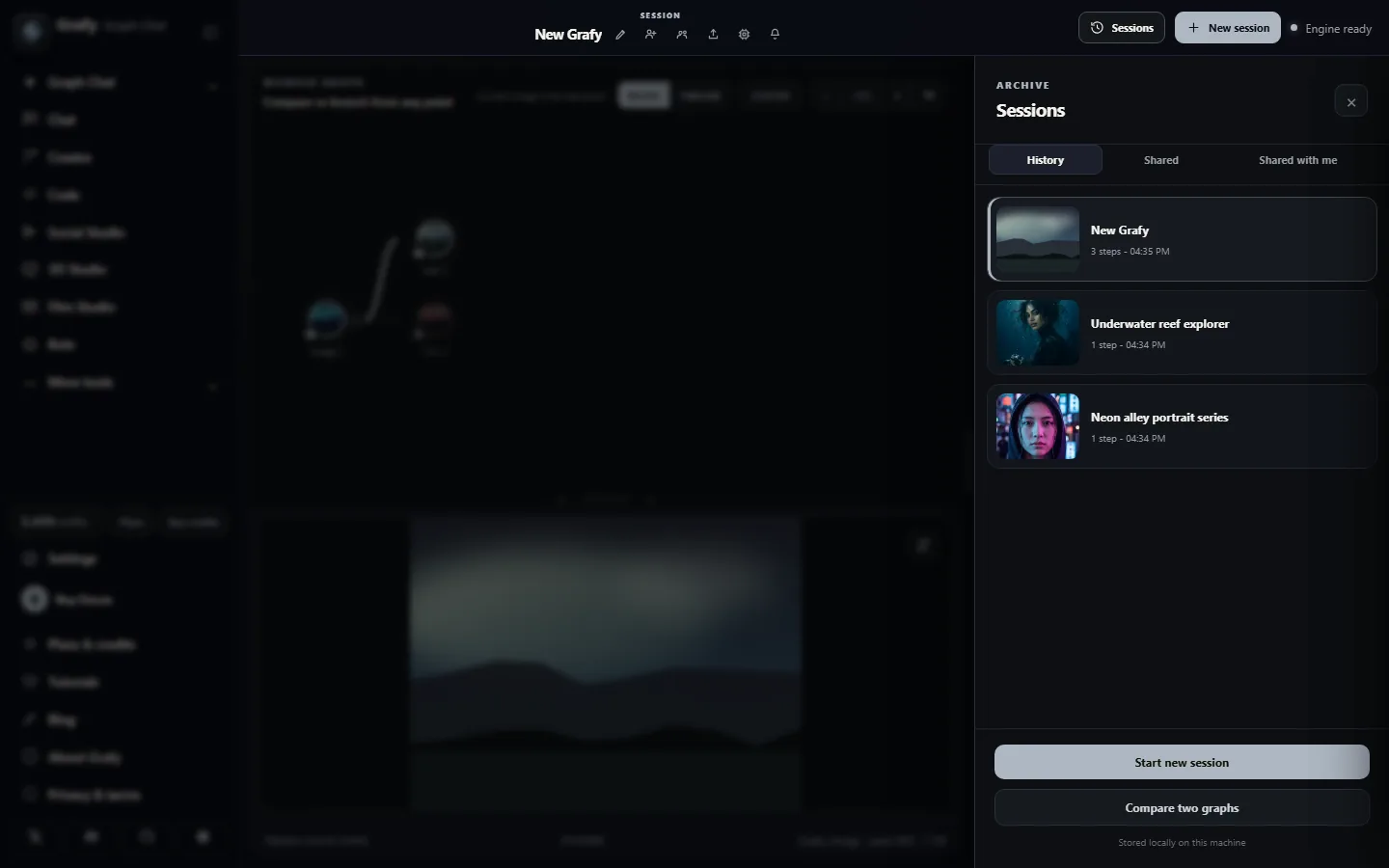
Going deeper
Response types & video controls
Every request declares what it wants back, and each modality carries its own controls:
- Image — text-to-image, instruction edits of any image node, and a prompt-adherence control that trades literal obedience for creativity.
- Video — text-to-video and image-to-video with duration choices of 5–120 seconds and 16/30/60 fps. Clips longer than five seconds are generated as chained segments, each continuing from the last frame of the one before; 30 and 60 fps are temporally interpolated. Motion and source fidelity sliders balance movement against preserving faces, clothing and composition, and video follow-ups continue from the clip's last frame.
- Text — answers from a local instruct model; asking a question about an image or video node routes through a local vision model that actually inspects the media.
- Audio — spoken answers via text-to-speech, saved as audio nodes. Any audio or video node also offers Transcribe, which creates a linked, searchable transcript node.
- 3D model — text-to-3D results land as GLB nodes that open in an interactive viewer (and in 3D Studio).
PDF document graphs
Drop a PDF onto a fresh workspace and Grafy builds a document session: it keeps the original paper, extracts the headings, summarizes the overview and each major section locally, and lays the result out as a navigable mind map beside a built-in PDF reader.
The taxonomy adapts to what you dropped — a detector reads the title,
headings and section text, then applies a profile for research papers,
contracts, policies, manuals, reports or proposals, with a general
fallback. Category labels, colors and edge meanings are stored per node,
so the legend always describes your document. Text-like
attachments (.txt, .log, .md,
.csv, .json) feed the request context the same
way.
Merging & compare
Select multiple completed nodes and merge them into one result — as a still image or an animated MP4. Merge context is partitioned: shared ancestors are applied once, then each node's exclusive branch history is preserved separately before the final merge instruction, so a common grandparent doesn't get double-counted.
You stay in control of context everywhere: exclude specific ancestry from any request, and the exclusion is recorded on the generated node. Regenerating a leaf keeps the old version as a sibling with explicit provenance, and Compare two graphs (in the Sessions drawer) diffs whole sessions.
Prompt Studio, Batch, Auto-pilot & plugins
- Prompt Studio — templates, style packs, reusable instructions and negatives you can apply to any request.
- Batch — generate several variations in parallel from one prompt; each lands as its own node under the same parent.
- Auto-pilot — give one goal and Grafy plans a chain of steps, executing them as connected nodes you can inspect or take over at any point.
- Plugins — register your own ComfyUI workflow as a first- class tool; it then appears in the composer like any built-in modality.
Parallel jobs, progress & recovery
Multiple requests can run at once on different branches of the same session — pending nodes show a faded source preview with live progress while completed nodes stay fully interactive. Each session's jobs are independent, so you can switch sessions (or apps) while work continues, and in-flight jobs survive a page reload: reopening the app re-attaches to anything still running. Interrupted edit sessions reopen with their source canvas rather than a blank placeholder.
Sharing, collaboration & workspaces
Sessions are private to your account by default. Share one by signed-in link or invite collaborators by email as viewer or editor from the session header; the Sessions drawer separates what you own, what you've shared, and what's shared with you. The More menu adds team workspaces, project memory (facts the session should remember), API keys and webhooks for automation, and scheduled pipelines.
Exports
Any session exports as JSON (full data), Markdown, HTML, PDF, a PowerPoint deck, or a rendered storyboard MP4 — one artifact from the whole graph, downloadable from the session header. Individual nodes download their media directly.
Models & credits
The Generation settings panel selects among a central open-weight catalog (Qwen image/edit/text/vision families, Wan video, and more) plus cloud models routed through hosted providers. The list is filtered to what your hardware or plan can actually run; each option shows its runtime, whether it's cached, and its relative credit multiplier.
Charges multiply modality, resolution, duration, operation and history by model complexity — bigger models cost proportionally more, CPU runs cost less than GPU runs, and the estimate is always shown before you send. The usage dashboard breaks spending down by day, modality and model.