3D Studio — text to mesh to editor
Open 3D Studio →A real 3D editor in the browser — Babylon-powered — wired straight into Grafy's generation backend. Type a prompt and a model lands in the viewport as editable geometry; from there you can transform it, re-material it, auto-rig it, animate it from a motion library, remesh, texture, print-check and export it in professional formats. Models live as nodes in the same sessions as everything else you make.
Walkthrough: prompt to editable mesh
The editor shell
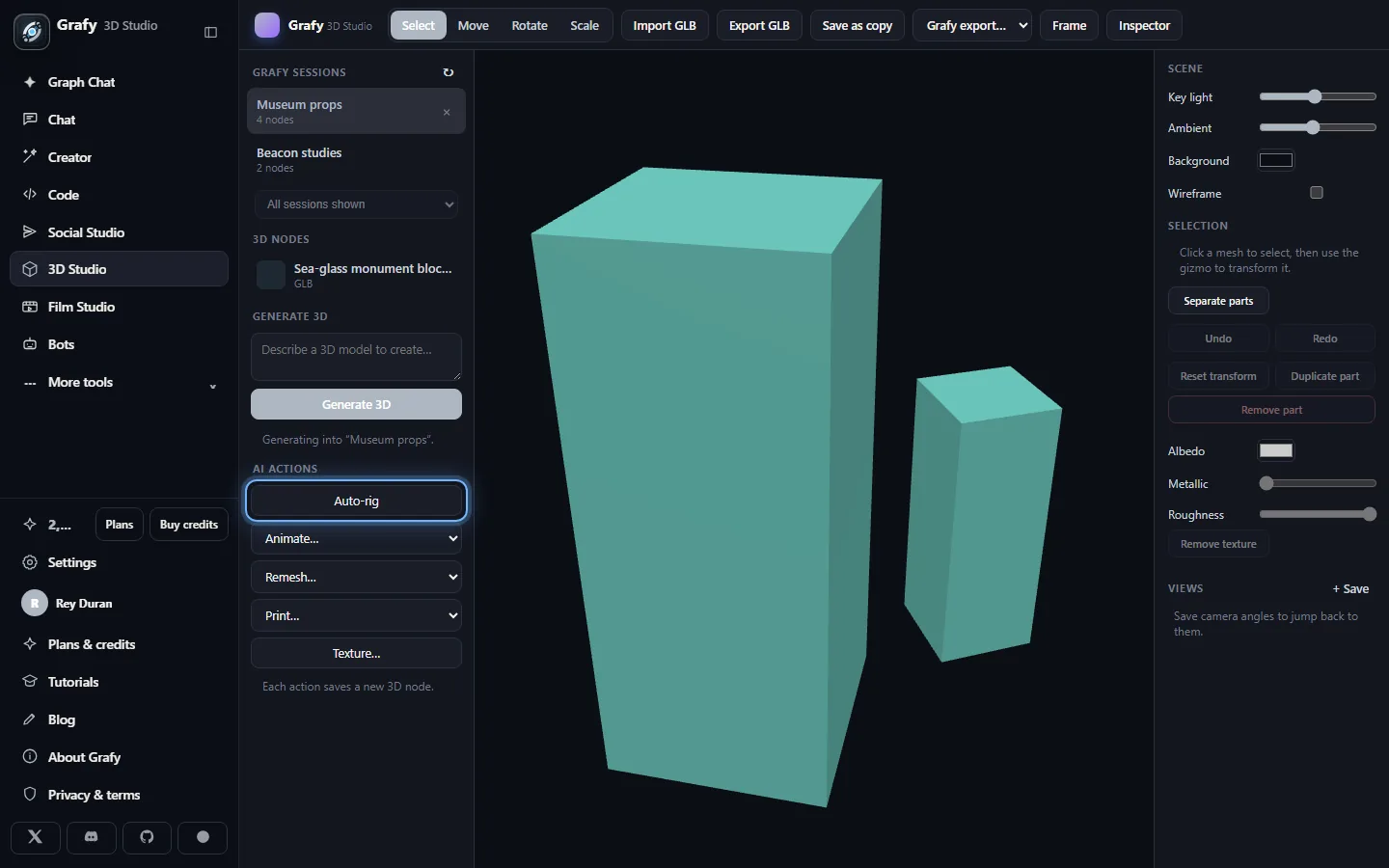
Left: your Grafy sessions, their 3D nodes, the Generate 3D prompt and the AI actions stack. Centre: the viewport with Select / Move / Rotate / Scale gizmos, GLB import/export and an inspector. Right: scene lighting, background, wireframe and per-part material controls.
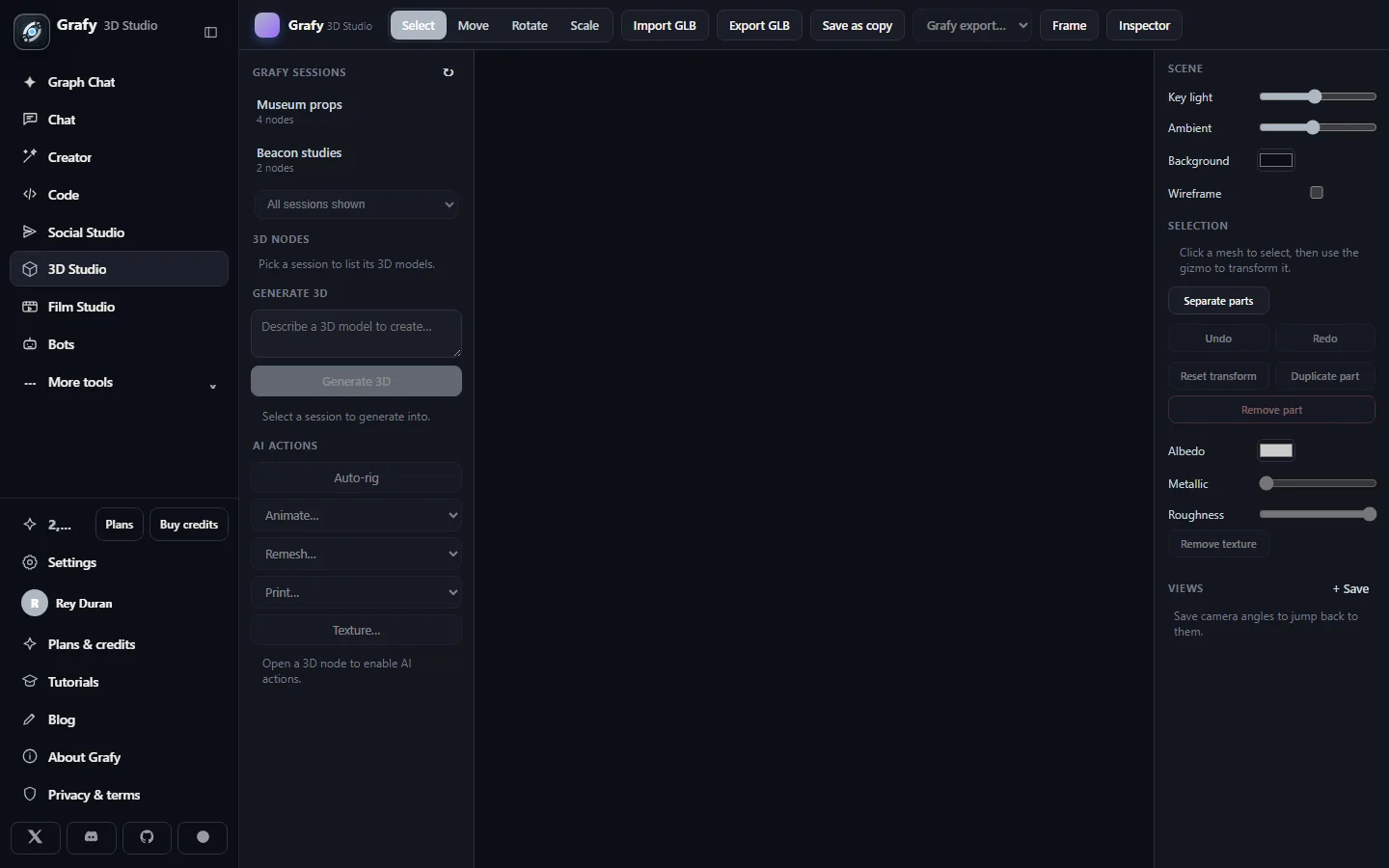
Open any model node
Pick a session, click a node, and the mesh loads with camera framing, saved views and per-part selection.
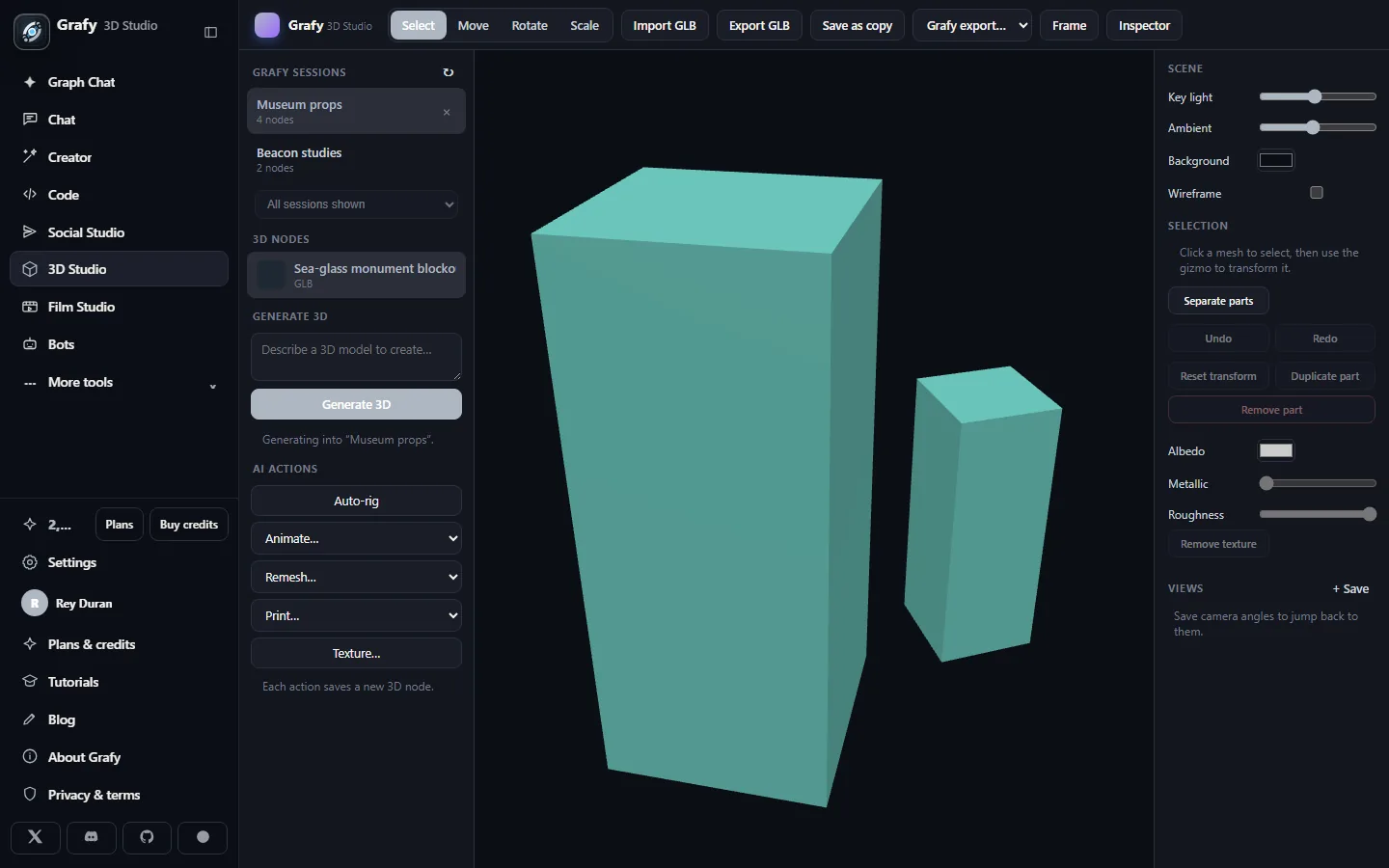
Describe the next model
Text-to-3D straight into the active session — “Generating into ‘Museum props’” says exactly where the node will land.
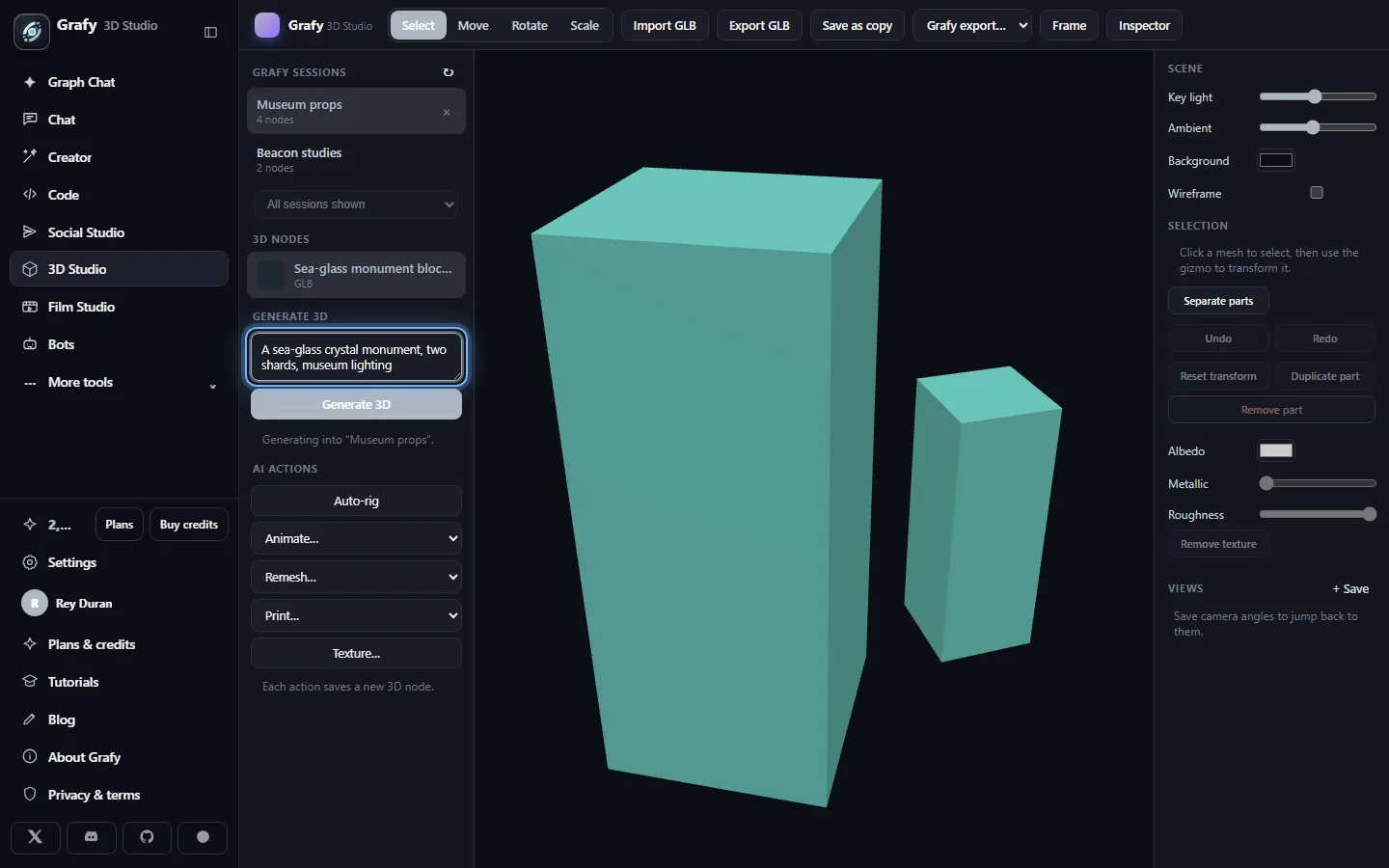
Generated, then editable
The result is standard geometry, not a picture of geometry — select parts, transform them, and adjust the material sliders live.
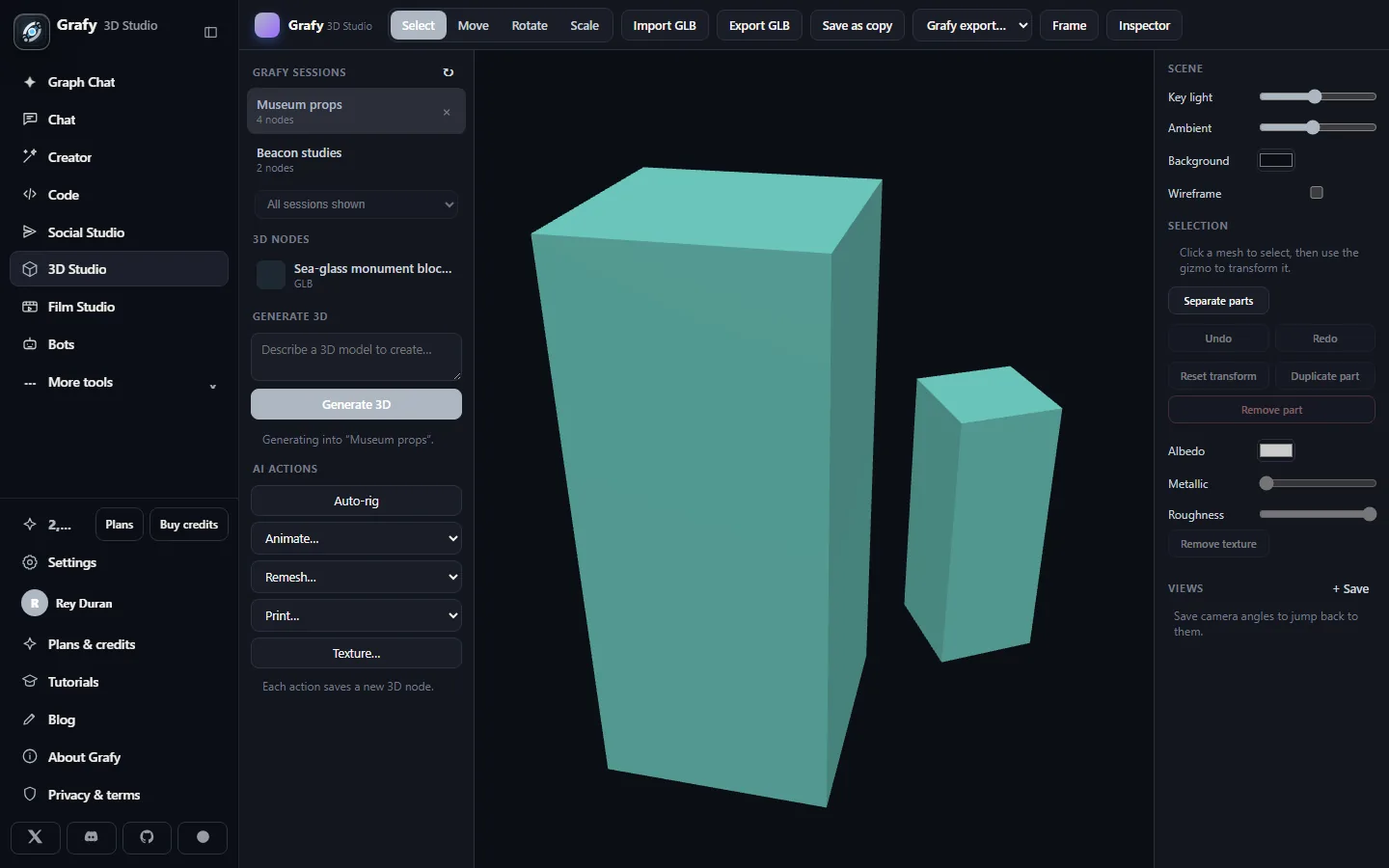
Then hand it to the AI actions
Auto-rig, Animate…, Remesh…, Print…, Texture… — each action saves its output as a new 3D node, so every stage of the model stays recoverable.
Going deeper
Viewport, gizmos, materials & the Inspector
The viewport is a full orbit/zoom/pan camera with adjustable key light, ambient intensity, background colour and a wireframe toggle. Click any mesh to select it, then move / rotate / scale with the gizmo of your choice; Frame re-centres the camera on the selection, and named views save camera angles you can jump back to.
- Per-part editing — Separate parts splits a multi-piece model so each shard transforms alone; duplicate, reset or remove parts individually, with undo/redo throughout.
- PBR materials — live sliders for albedo colour, metallic and roughness on the selected part; textures can be cleared to get back to a clean base.
- The Inspector — one click opens Babylon's full scene inspector for deep material, light and node editing when the side panel isn't enough.
- Local files — import any GLB from disk into the scene and export the current scene as GLB, account or not.
Text-to-3D, sessions & saving back
The Generate 3D box turns a prompt into a mesh and loads it straight into the viewport; the node is saved into the session you have selected, so your 3D work sits beside the images and clips it belongs with. The session rail lists every session that contains 3D nodes; Save as copy writes your edited scene back to Grafy as a new node — originals are never overwritten. Prefer starting from a picture? Generate the concept in Creator or sketch it with the free Sketch to 3D pad, then ask for a model of it.
Auto-rig & the motion library
Auto-rig analyzes a character mesh and builds a skeleton with skinning weights — no manual bone placement — saved as a new rigged node. From there, Animate… applies motions from a library of 600+ presets organized into five categories (Daily actions, Walk & run, Fighting, Dancing, Body movements), with featured quick picks — Idle, Walk, Run, Jump, Dance, Wave — for the motions avatars, e-commerce and game work reach for most. Each animation saves as its own node, so one character can carry a whole motion set.
Remesh & texture
Remesh… rebuilds topology at a chosen density — decimate a million-face generation into something a game engine or slicer is happy with, or clean up messy geometry while keeping the silhouette. Texture… paints a described material onto the model with generated texture maps (“weathered bronze with verdigris in the recesses”), so the same mesh can try different finishes without re-generating the shape. Both write new nodes; the original mesh is always still there.
The printability check
Print… runs the “Born Printable” analysis — the pre-slice report a print farm would want:
- Watertight / manifold status, open edges (holes), and consistent face winding;
- Loose shell count, polygon count (with a remesh suggestion when it's slicer-hostile), bounding-box dimensions and volume;
- a plain-language verdict with concrete issues and a recommendation, plus estimated filament weight in PLA, PETG and ABS.
The same analysis is available as a free standalone tool at /3d-printability — no account needed.
Export formats & AR
Beyond GLB in the editor itself, the Grafy export menu converts a model node server-side into the formats pipelines actually ask for: OBJ, STL and PLY for mesh tools and slicers, FBX for DCC and game engines, STEP for CAD, and cloud-converted USDZ (Apple AR Quick Look) and 3MF (multi-colour printing). Any model node also opens on phones in AR via the built-in viewer — the same one behind the free 3D viewer.