How to Compress GLB Files for Web and AR

A 3D model that looks good on a workstation can load slowly on a phone. Reducing the file helps only if the result still looks right and works in its destination viewer. Start by finding what makes the asset heavy, then change and test one part of it at a time.
Why GLB optimization matters for modern 3D workflows
AI-generated assets, product previews and interactive scenes all need a practical delivery step. A dense source model may be useful while editing, yet unnecessarily expensive to download for a small product card. The visitor needs enough detail for that view and interaction, with a loading experience that works on their device.
In June 2026, Khronos announced plans for glTF 2.1, extending the format toward composed scenes and more capable delivery workflows. That announcement reinforces the importance of efficient asset delivery; it does not mean that every current viewer or Grafy tool supports the proposed format features. For this guide, use ordinary, self-contained GLB assets compatible with the tools you are actually deploying.
Find out whether geometry or textures dominate
A GLB can contain geometry, materials, textures and other scene data. Dense meshes and large images create different optimization problems. Removing many triangles may barely affect download size if most of the bytes belong to textures. Conversely, a plain model can still be expensive to render if its geometry is unnecessarily dense.
Open the original in the free 3D viewer and note the file size, silhouette and important surface details. Decide where it will appear: a small card, a full-screen inspection view and an AR object invite different levels of scrutiny. Keep the source file unchanged so that every candidate can be compared against the same baseline.
What Grafy's GLB compressor actually does
The free GLB compressor works in your browser. It accepts a GLB or a self-contained glTF file, welds duplicate vertices, optionally simplifies geometry, and exports a binary GLB. The interface reports original size, optimized size, savings and the output triangle count. It requires no account and does not upload the selected file for processing.
The polygon-reduction control starts at 0%, with steps of 5% up to 90%. Start at zero to see what repacking and welding accomplish before requesting simplification. The reduction setting guides geometry simplification; it is not a promised percentage reduction in total file size or even an exact final triangle target.
Use this workflow for static assets. The current export does not explicitly preserve source animation clips. It also does not provide Draco, meshopt or KTX2 texture encoding. Those are separate pipeline capabilities, so do not assume that an “optimized” filename means one of those compression formats has been applied.
Compress a static model in a controlled sequence
First, export a self-contained GLB from the source application. A glTF file with neighboring texture and binary files needs those resources to load, and selecting only its JSON file will not bundle missing companions for the browser tool. A single GLB avoids that common packaging problem.
Open the compressor, choose the file and run Optimize with reduction at zero. Download the candidate, then reopen it in the viewer. If the result still meets your visual requirements and you need further savings, return to the original file and try a modest reduction. Working from the original makes each setting comparable and avoids repeatedly simplifying an already simplified mesh.
Record the output size and retain only candidates worth reviewing. A file that does not become smaller is a valid outcome: the original may already be compact, or re-exporting may add overhead. Choose based on the actual result rather than expecting a fixed savings percentage from every asset.
A worked example for a product-card model
Suppose you want a static ceramic planter on a product page. This is an illustrative test plan, not a measured benchmark. Save the source as planter-original.glb, and identify the details that must survive: the rim, the drainage opening, the outer silhouette and the visible surface material.
Make a first candidate at zero reduction. Then return to the original and try 20%. Keep a small record containing the chosen setting, output bytes, displayed triangle count and visible defects. Rename the downloaded candidates yourself so that planter-0.glb and planter-20.glb are easy to distinguish from the unchanged source.
Compare both candidates from matching angles. If the rim becomes angular or the drainage opening changes shape, reject that version even if its download is smaller. If both look acceptable in the product-card view, open the full-screen viewer too: a visitor may inspect the model more closely than the first thumbnail suggests.
Compare appearance before trusting the file size
Check the silhouette first, because a recognizable contour is often more important than detail on a hidden face. Then examine curved edges, holes, material boundaries and normals. A model can have fewer triangles but worse shading, or look acceptable under one lighting setup while exposing artifacts under another.
For an AI-generated model, keep the generation and cleanup stages distinct. The photo-to-editable-3D guide covers creating and revising a source asset, while the 3D planning agent guide explains organizing a longer build. Compression is a delivery decision made after you know which revision you want to show.
Treat texture compression as a separate decision
If a file remains large after a reasonable geometry pass, inspect the texture workload in your authoring or asset-processing tool. A texture can carry detail the silhouette never needs, while a low-resolution texture can become visibly blurred when the visitor zooms in. Choose resolution and encoding based on the actual viewing distance and material requirements.
Khronos's KTX documentation describes a container and tooling ecosystem for efficient GPU textures. That is a useful next step when supported by your publishing pipeline and destination renderer. Grafy's current compressor does not encode KTX2 textures, so use an appropriate external asset tool for that step and test the resulting file with the intended loader.
Keep geometry simplification, texture encoding and transport compression separate in your notes. They affect different costs: downloaded bytes, decoded memory and rendering work. A smaller download does not by itself prove that the model uses less GPU memory or renders faster.
Test the destination viewer and AR experience
Open the candidate in the actual destination, including a representative phone. Verify the first visible render, interaction responsiveness, materials, orientation and apparent scale. Repeat from a fresh load so that a cached file does not hide the download experience you are trying to improve. If you measure timings, record the device, connection and conditions with them.
AR adds another compatibility check. Web rendering, Android AR and Apple's Quick Look can take different paths. The official model-viewer AR examples explain those modes and the role of USDZ on supported Apple workflows. A successful GLB optimization does not itself perform every conversion or guarantee identical behavior in every AR mode.
Use the viewer for an initial inspection, then validate the specific page or application where the model will be published. If the receiving service has upload limits, use its current documented limits; there is no universal file-size target that makes every model suitable for every platform.
Choose a browser tool or a production asset pipeline
A browser compressor is convenient for a few static models when you want a quick, private geometry pass and immediate inspection. A dedicated asset pipeline is a better fit when you need batch processing, animation preservation, a specific compression extension or repeatable exports across a large catalogue.
Keep the original and the selected delivery file together with a note of the settings. Reproducible workflows explains why preserving that history makes later revisions easier. If the same source will also become a physical object, follow the separate AI image-to-3D printing guide: the smallest web model and the best geometry for a print may be different revisions.
Frequently asked questions
Is Grafy's GLB compressor free and private?
Yes. The public compressor processes the selected file in your browser, requires no account and does not upload it for optimization. Processing capacity depends on your device and available browser memory. Keep the original file, and inspect the downloaded candidate before replacing any asset already used by a website or application.
How much smaller will my GLB become?
There is no fixed percentage. The result depends on duplicate geometry, requested simplification, texture data and the way the original was exported. Start with zero reduction, inspect the measured output, and increase reduction only when needed. A texture-heavy or already compact asset may show little saving or even grow when re-exported.
Does the compressor preserve animations?
This guide is scoped to static assets because the current compressor export does not explicitly include the imported animation clips. Keep animated source files unchanged and use a pipeline that supports and verifies animation preservation. Always replay the exported file in its destination viewer before considering any animated delivery asset complete.
Does this tool apply Draco or KTX2 compression?
No. The current Grafy tool welds vertices, optionally simplifies geometry and re-exports a GLB. It does not expose Draco or meshopt encoding, nor KTX2 texture encoding. If your delivery pipeline needs a particular extension, use a tool that explicitly supports it and confirm that the receiving viewer can decode the result.
Why does my glTF load fail when I choose the file?
A glTF JSON file can reference separate binary buffers and texture images. Selecting the JSON alone does not give the tool those neighboring files. Export a self-contained GLB from the source application and try that instead. If loading still fails, check the source asset and its required extensions in a compatible viewer.
Compress a static GLB in your browser, then compare the candidate with the original before publishing it.
Read next
More from the Grafy blog.

Deep research from one link: a cited report on the graph
Give Grafy a question and one starting link. It crawls the pages that matter, writes a report that cites every claim by number, and files it as a node.

Two AI hosts, one topic: a podcast from your own notes
Grafy writes a two-host conversation on any topic, grounds it on the note you have selected, voices each host in its own preset and saves one audio node.
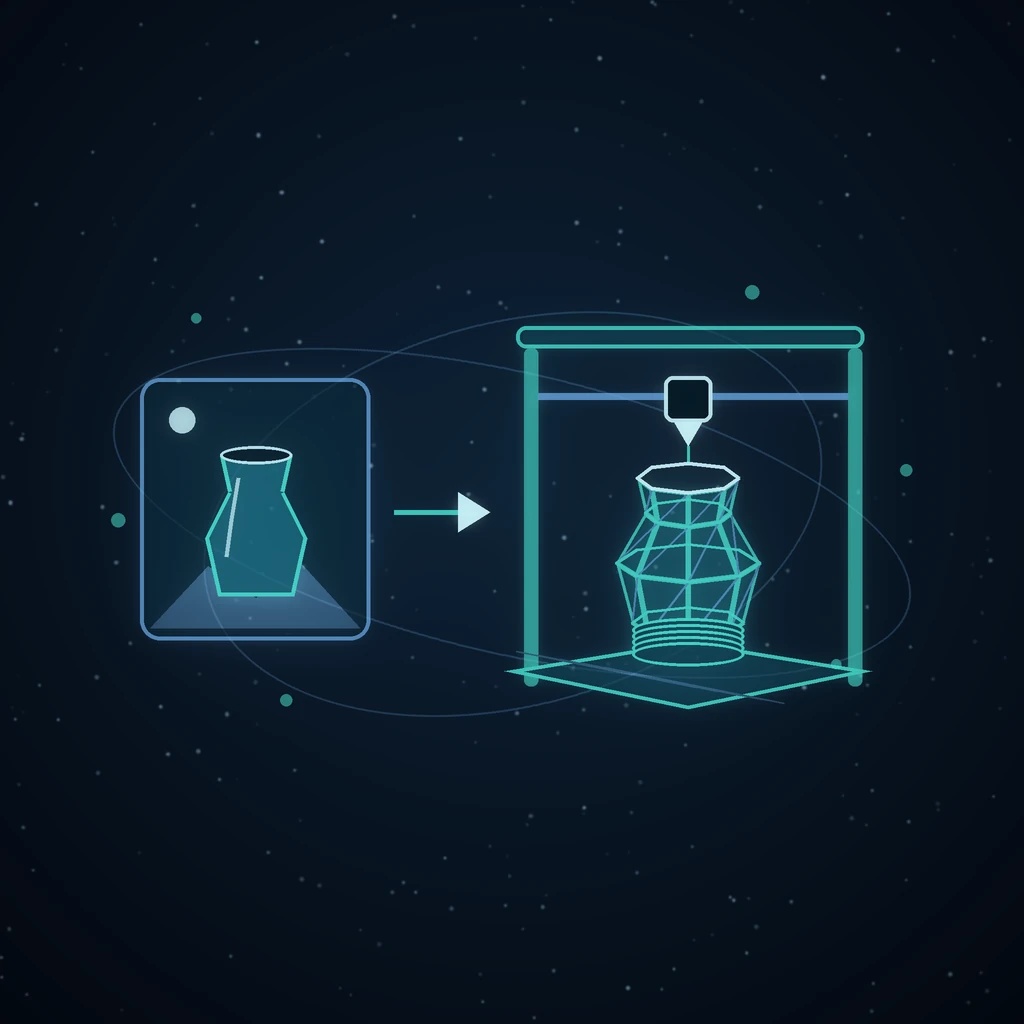
AI Image to 3D Printing: From Photo to STL
Turn an AI-generated 3D model into an STL: choose a clear photo, inspect geometry, check printability, set scale, and review your slicer before printing.