Canva introduces an AI “off” toggle for its design suite
Canva now lets users disable most generative AI tools via a new toggle, addressing complaints about AI overload while keeping essential helpers active.
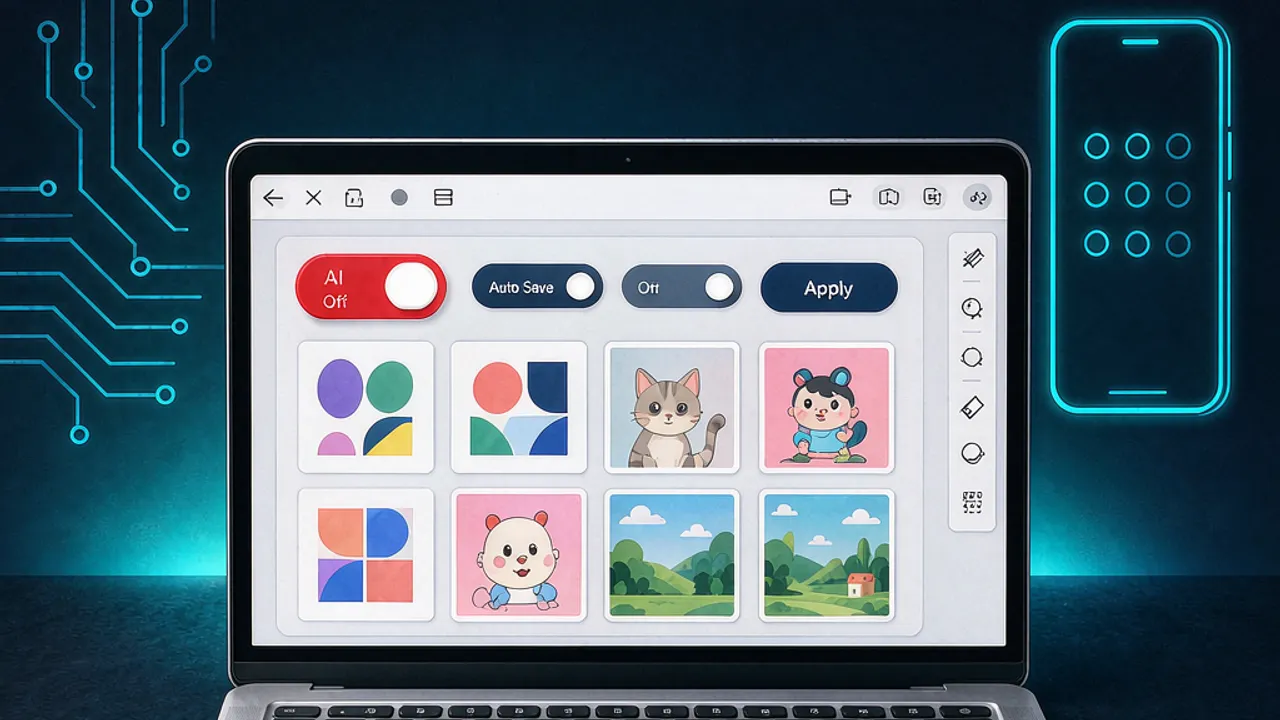 Source: The Verge — AI
Canva has added a new switch that lets users turn off the bulk of its generative AI features, a move that directly answers growing user fatigue with AI‑driven design suggestions. The change matters because it gives creators more control over when AI assists their workflow and when it stays silent, preserving a more traditional design experience for those who prefer it.
What does the AI “off” button actually control?
According to The Verge, the toggle disables a large suite of Canva’s AI‑powered tools, including the Magic Expand photo‑extending feature, the Canva chatbot’s image‑generation capability, Magic Write, Magic Design, Magic Layers, Magic Edit, Dream Lab, Canva Code, AI Shapes and several others. When the switch is on, these tools no longer appear in the interface, and any prompts that would normally invoke a model are blocked.
Which AI‑assisted features remain active?
The Verge notes that the background remover and the Magic Grab tool are exempt from the toggle. Canva explains that these utilities “make everyday tasks faster without generating anything new,” so they stay enabled even when the broader AI suite is switched off. Users can still rely on these helpers for quick cut‑outs or object repositioning without the system producing novel content.
How do users enable or disable the toggle?
Canva places the control in the account settings. Free and paid users can navigate to Profile > Settings > Permission and flip the Enable generative AI features switch. A separate option for reducing AI‑generated results in the content library lives under Profile > Your account > AI personalization, where turning on Show less AI content prioritises human‑created assets in search results. Both settings are reachable from the web dashboard and the mobile app.
Why did Canva add this option now?
Since Canva’s aggressive AI rollout in 2023—including the launch of its own model, Canva Craft, and a prompt‑driven editing update in April—some designers voiced frustration over the sheer volume of AI suggestions crowding the workspace. The Verge reports that the new toggle is a direct response to that feedback, giving users the ability to opt‑out of generative features while retaining the productivity‑boosting, non‑creative helpers.
How can Grafy users experiment with similar AI controls?
Grafy’s Chat app lets you run multiple models side by side and, crucially, choose when to invoke a generative model at all. By disabling the model in a particular conversation, you can mimic Canva’s “AI off” experience and see how a purely deterministic workflow feels. For deeper exploration, you can also use Reader to ingest Canva’s help documentation and ask targeted questions about the toggle’s behavior. Both apps are reachable via the links below:
- Grafy Chat – switch models on or off and compare results.
- Grafy Reader – upload Canva’s support PDFs and query them directly.
While Grafy does not embed a single‑click “AI off” button across all its apps, the platform’s modular design lets you decide which models to load for each task, offering a comparable level of control.
What impact might the toggle have on Canva’s ecosystem?
By giving designers the option to hide AI‑generated assets, Canva may see a shift in how its library is used. Human‑crafted templates could surface more often, potentially increasing the perceived value of premium assets. At the same time, the continued availability of non‑creative helpers like background removal ensures that workflow efficiency is not sacrificed for users who simply want to streamline routine edits.
Are there any limitations or caveats?
The Verge points out that the toggle does not disable every AI‑powered feature. Background remover and Magic Grab remain active, and any third‑party integrations that rely on Canva’s AI APIs may still operate. Users should also be aware that turning off AI does not affect Canva’s internal recommendation engine for layout suggestions, which may still incorporate learned patterns.
Frequently asked questions
Does the AI off button affect Canva’s pricing tiers?
The toggle is available to both free and paid accounts, so there is no direct impact on subscription costs. However, premium users may notice a change in how often AI‑enhanced premium templates appear in their searches.
Can I still use Canva’s AI chatbot for text generation after disabling the toggle?
No. The toggle disables the chatbot’s ability to generate images and text. To regain that functionality, you need to re‑enable the Enable generative AI features switch in the permissions menu.
Will Canva ever extend the toggle to cover background remover and Magic Grab?
Canva has stated that those tools are essential for everyday editing and therefore remain on by design. Any future expansion of the toggle would likely be announced in a separate update.
More news

Claude Code and Other Coding Agents Now Run Cloud‑Based 24/7
A Towards Data Science guide shows two ways to keep Claude Code and similar coding agents online continuously—either via a ready‑made cloud toggle.

Small Models Narrow Accuracy Gap for AI Coding Agents, Study Finds
A new study shows that recent small open‑weight models can match larger counterparts on a software‑engineering benchmark.
Study Finds Gender Stereotyping in LLM‑Generated Bedtime Stories Across 35 Countries
Researchers analyzed 62,873 stories from 16 large language models and uncovered gendered portrayals that vary by narrator role and country.